Página não traduzida
Esta página ainda não está disponível em português. O conteúdo é apresentado em inglês.
Initial Setup
Configure the encoder's network settings before connecting it to a VMS. You can perform initial configuration from a laptop directly connected to the encoder's network port or from a computer on the network.
Default Network Configuration
The device uses DHCP by default. If no DHCP server assigns an address, it selects an Automatic Private IP Addressing (APIPA) address between 169.254.0.1 and 169.254.255.254, with subnet mask 255.255.0.0.
Use the ION Configuration Tool (ICT), also called IonConfigTool, to discover devices and assign their initial network settings. Obtain the tool from IONODES.
ICT provides:
- Device discovery.
- Remote IP-address and subnet-mask assignment.
- Device identification through a flashing orange/yellow status LED.
- Batch firmware updates for devices of the same type.
- Access to the device web application.
Discover the Device
- Connect the encoder to the network and power it on.
- Wait until its status LED is steady yellow.
- Launch ICT on a computer connected to the network.
- Locate the encoder in the discovered-device list.
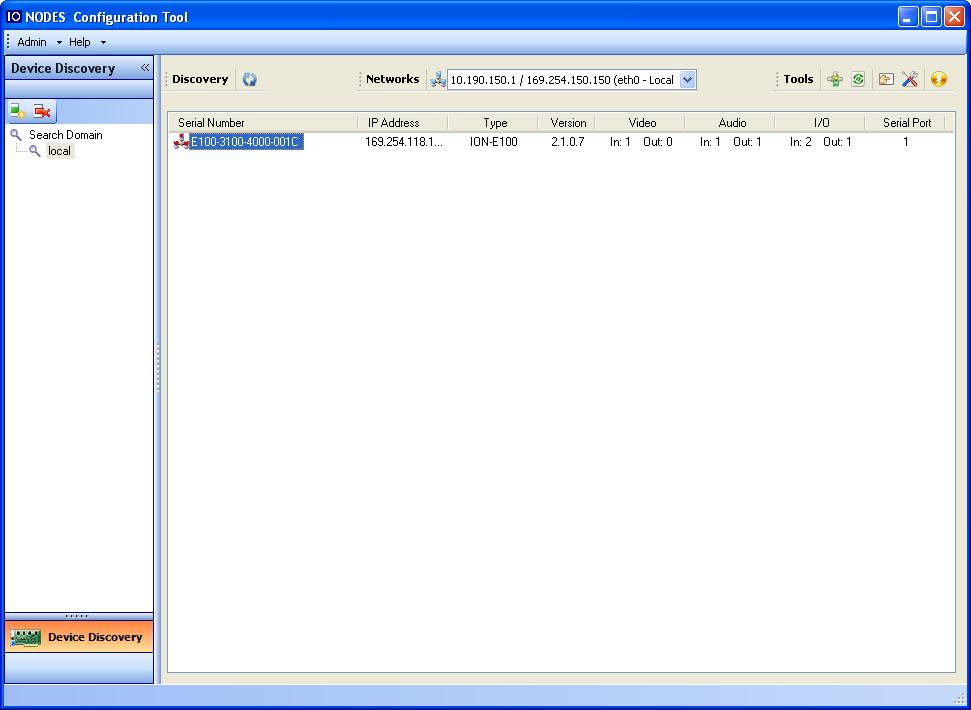
Bonjour discovery requires multicast delivery on the network. If multicast discovery is unavailable, configure unicast discovery.
Unicast Discovery
- Open Admin > Unicast Discovery.
- Add one or more IP-address ranges.
- Use several small ranges rather than one large range to reduce discovery time.
- Increase the ping timeout for a high-latency network if needed.
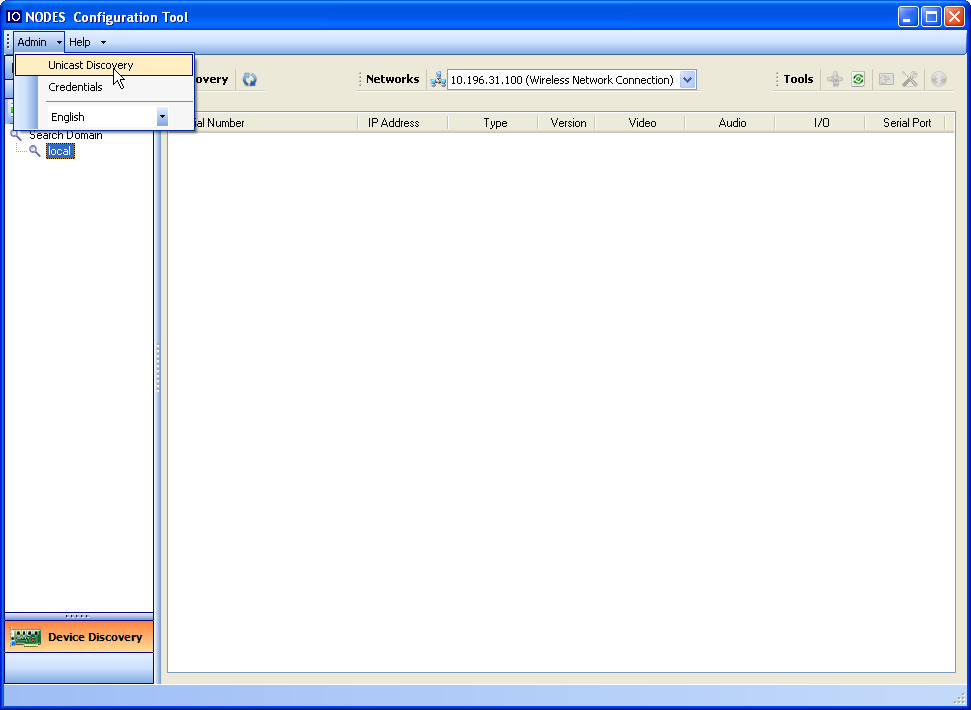
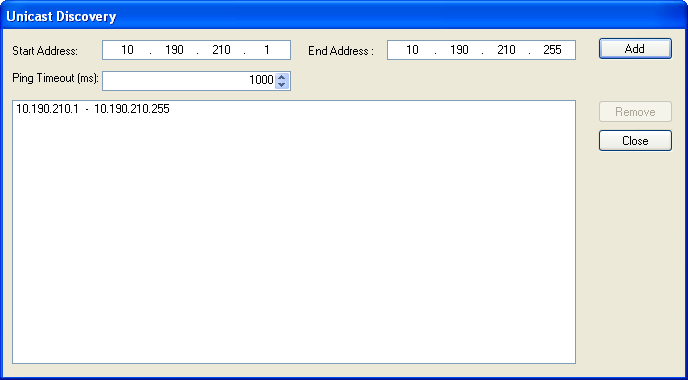
Assign an IP Address
If ICT lists the encoder with a 169.254.*.* address, assign an address suitable for your network before attempting remote configuration.
- Select the encoder in ICT.
- Choose Assign IP address from its context menu.
- Configure the required TCP/IP settings in the assignment dialog.
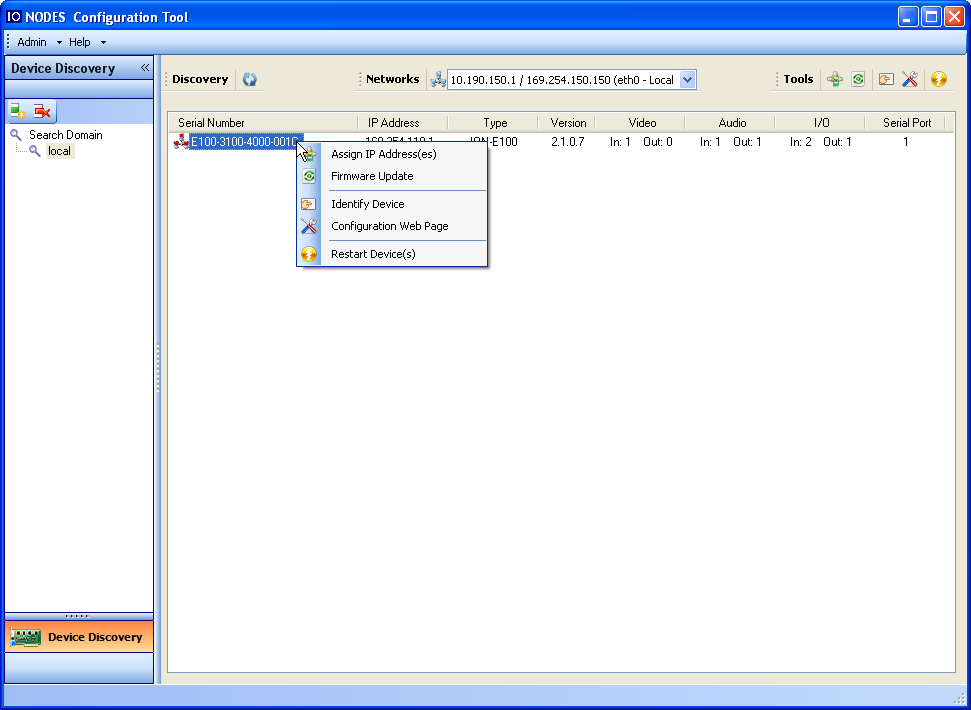
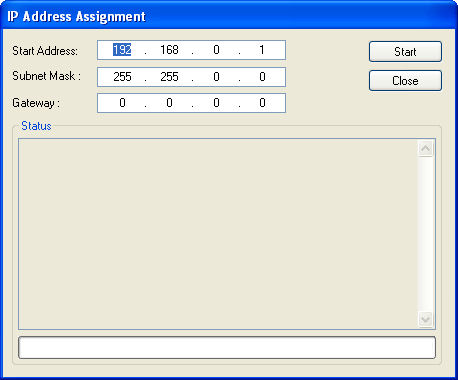
After setting the address, open the device web application from ICT or enter the device IP address in a compatible browser. See Dashboard for legacy interface requirements and initial login.