Integrations
Open Configuration > Integrations to manage cloud and third-party integration toggles.
PERCEPT Cloud
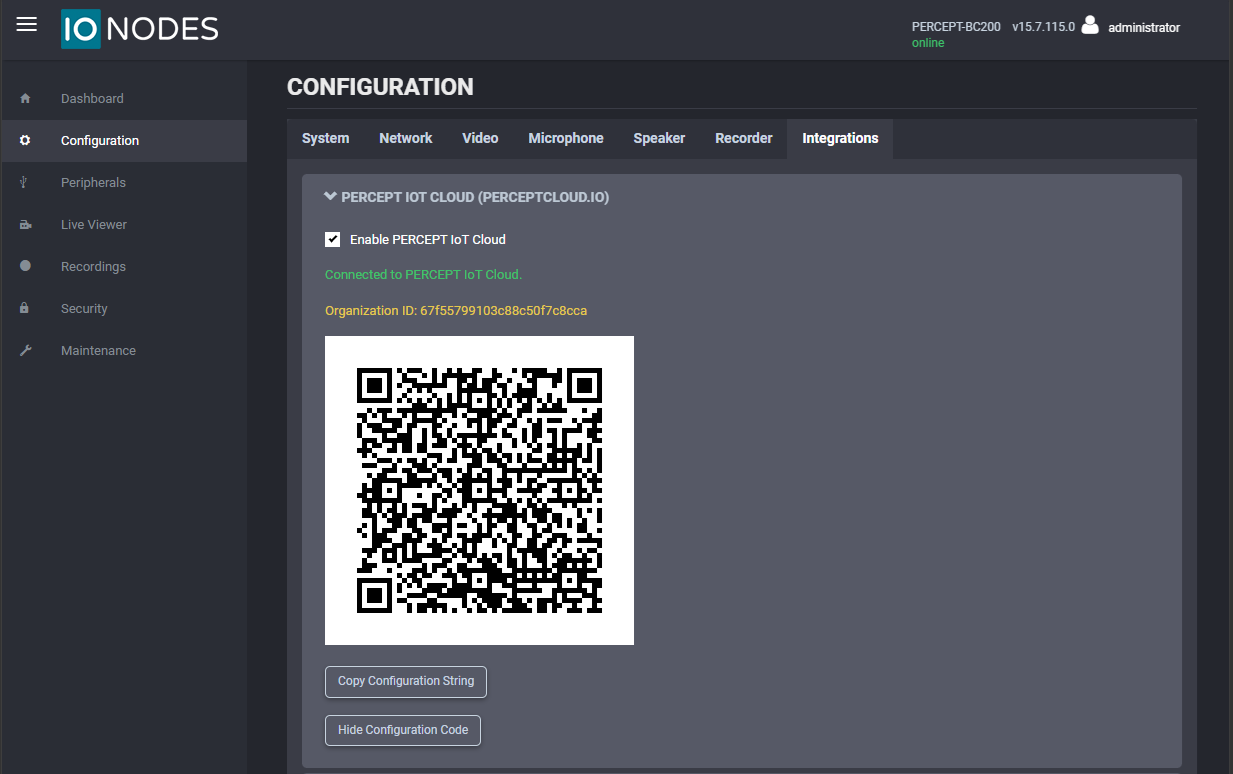
In the Configuration page, select the Integrations tab and expand the PERCEPT Cloud section.
The PERCEPT BC200 can be connected to PERCEPT Cloud for monitoring and management. The information required for onboarding is listed below.
Ensure that Enable PERCEPT Cloud is checked.
Note
When the device is already onboarded, the state appears in green as Connected to PERCEPT Cloud. The Organization ID is also shown and can be used to identify which PERCEPT Cloud organization a device belongs to.
Use one of the following methods to onboard the device:
- Click Show Configuration Code and scan the QR code from PERCEPT Cloud.
- Click Copy Configuration String and paste the configuration string into PERCEPT Cloud.
For onboarding instructions, see PERCEPT Cloud Body Camera Onboarding Guide.
Tip
When using PERCEPT Cloud on a mobile device or tablet, scanning the QR code is usually the quickest option. When connected remotely from a desktop browser, copying and pasting the configuration string is often more convenient.
Genetec BWC Role
Enable Genetec BWC Role integration and upload the required Camera Station JSON file.
