Network
Network configuration for Wi-Fi, Ethernet, LTE, VPN, and client applications.
Network interfaces
Open Configuration > Network to manage connectivity.
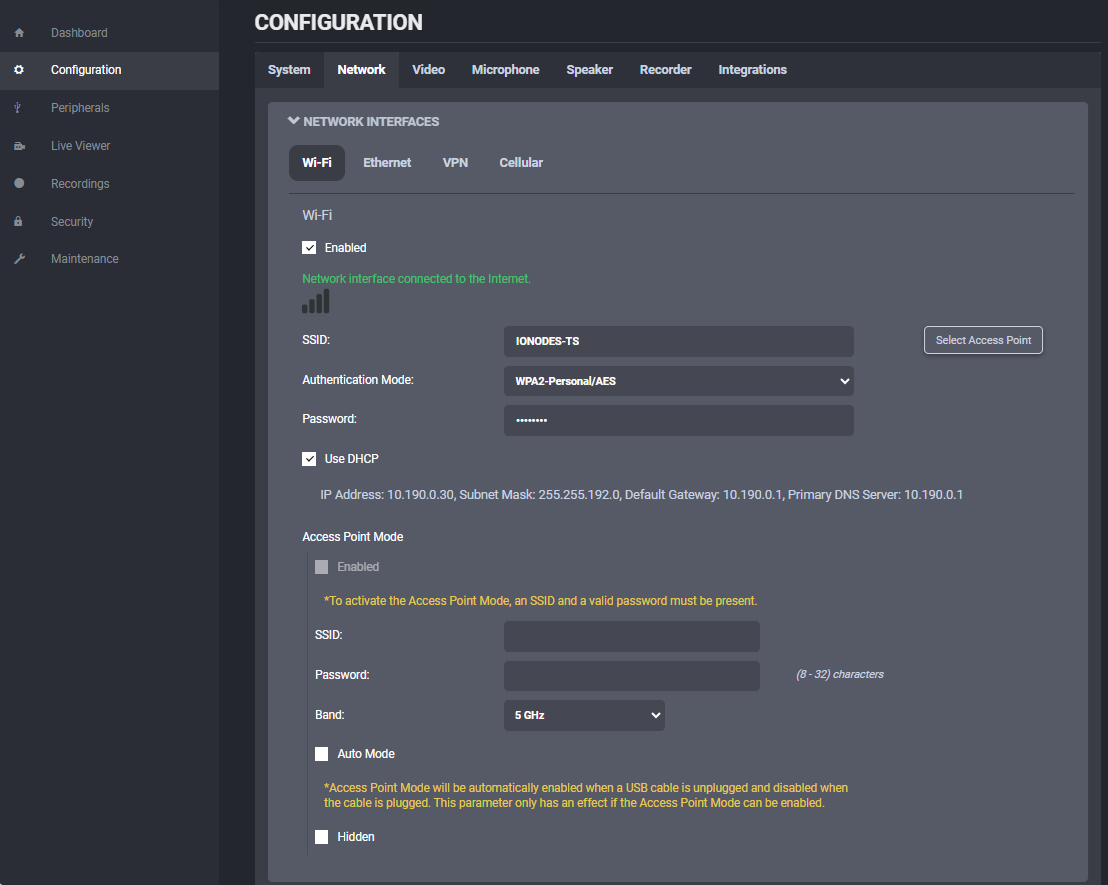
The body camera supports these main interface types:
- Wi-Fi / Client Mode for joining an existing wireless network.
- Wi-Fi / Access Point for temporary local client access.
- Ethernet when the camera is inserted into a dock with a wired network path.
- VPN for secure remote access over the internet.
Wi-Fi, Ethernet, and VPN
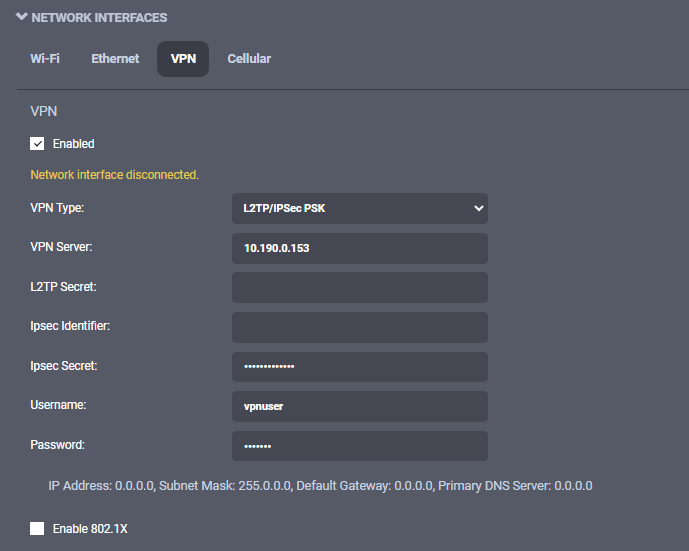
Use Network Interfaces to:
- Join a Wi-Fi network as a client.
- Present the camera as a temporary access point.
- Route traffic through the dock's Ethernet connection.
- Configure the built-in VPN client.
For certificate-based Wi-Fi authentication, upload the required certificates under Security.
Cellular connectivity and data usage
The Cellular section controls LTE availability and what traffic is allowed over mobile networks.
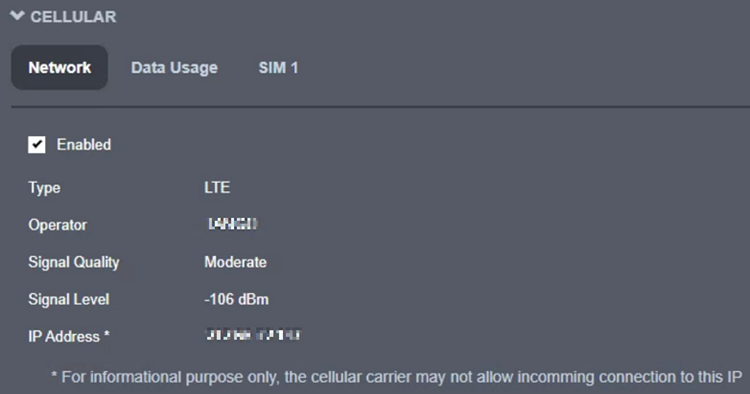
Use the Network subtab to review:
- Whether the cellular link is enabled.
- Signal and connection health.
- The IP address assigned to the mobile connection.
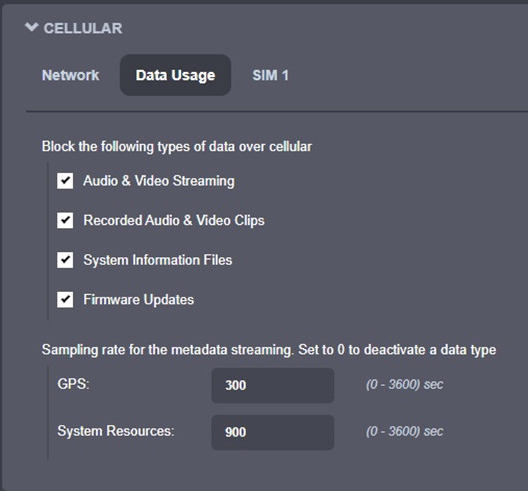
Use the Data Usage subtab to allow or block:
- Live audio and video streaming.
- Recorded clips.
- System information files.
- Firmware updates.
- Metadata streaming such as GPS and system resources.
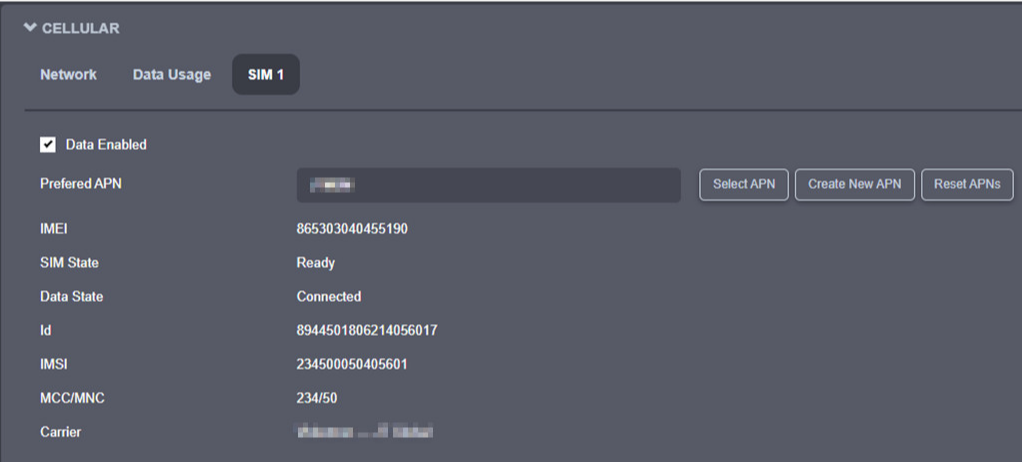
Use SIM 1 to review SIM presence, data connectivity, and APN settings.
Hostname and streaming controls
Set the hostname when the body camera needs a predictable network name instead of being identified only by IP address.
The Streaming section exposes two important controls:
- Media to block playback over wireless.
- Metadata to set GPS and system-resource sampling.
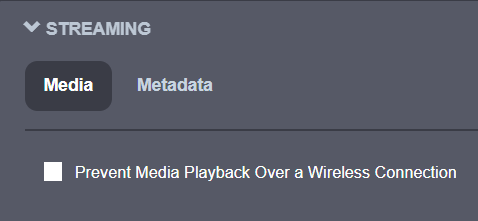
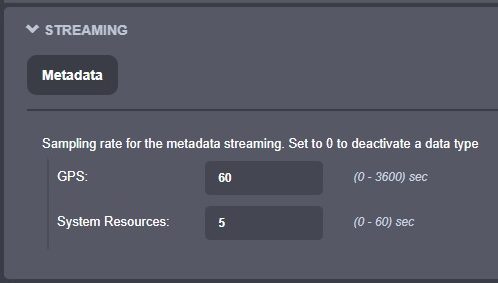
These controls matter most when bandwidth is limited, especially on Wi-Fi or LTE.
Browser access and service discovery
Use HTTP Configuration to control browser access behavior.
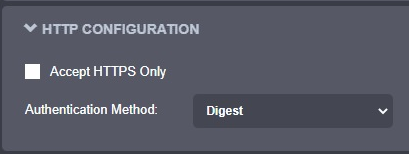
Key options:
- Accept HTTPS only to force encrypted browser access.
- HTTP authentication mode: Basic or Digest.
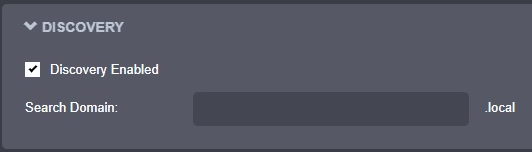
Use Discovery to manage Bonjour announcement and search domain behavior.
RTSP, multicast, and auxiliary ports
Use RTSP Configuration to control authentication mode and session timeout for RTSP clients.

Set the session timeout carefully. RTSP clients should send keep-alives well before the timeout expires.
Use Multicast to enable or disable multicast streaming.

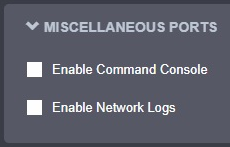
Use Miscellaneous ports to enable or disable auxiliary services such as logging and command console access.