Video
Open Configuration > Video to configure the main encoding profiles and on-camera video behavior.
General
The General section shows a live preview snapshot and a refresh control for the current image stream.
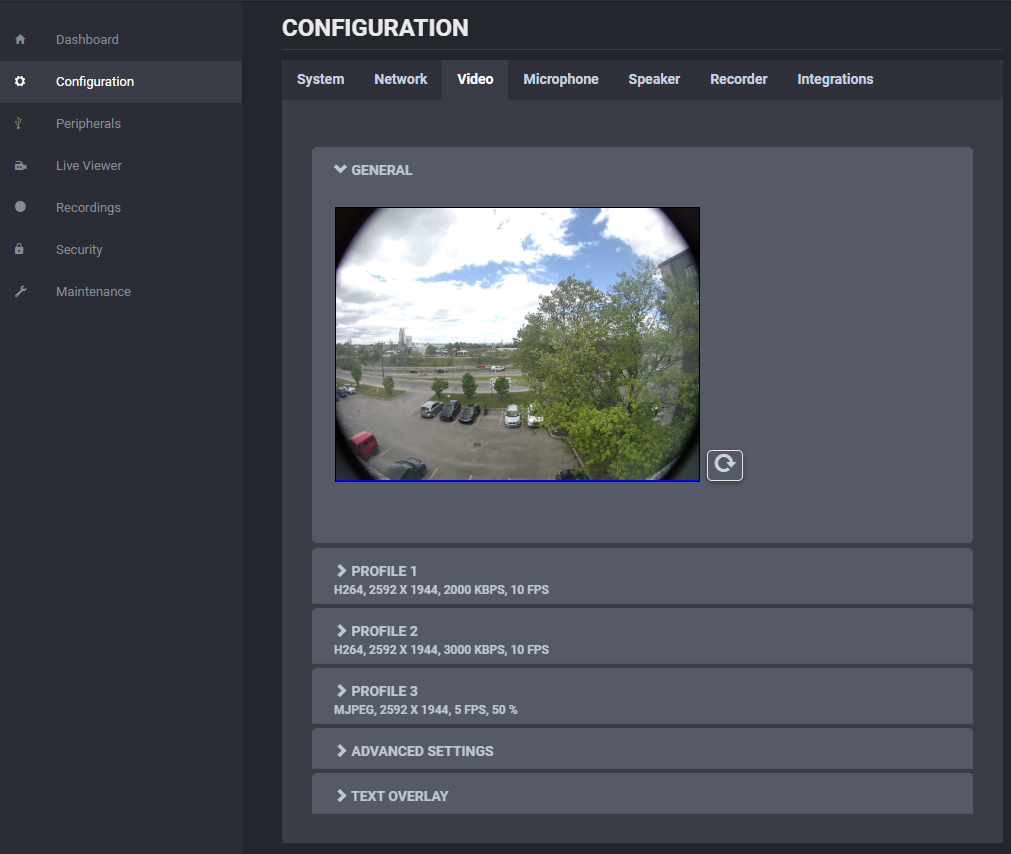
This area is mainly a preview check rather than a detailed configuration block. Use the refresh button to update the still image and confirm the current input is behaving as expected.
The configured encoder profiles expose the following settings:
- Encoder enable or disable.
- Encoder type.
- Resolution.
- Frame rate.
- Target bit rate.
- Intra interval.
- Rate control.
- H.264 or H.265 profile.
- VBR aggressiveness.
- Stream URL.
Note
The sensor capture resolution and frame rate are adjusted automatically to satisfy the enabled profiles. Aggressive settings can increase device temperature.
Profile 1
The first video profile is typically the highest-bandwidth stream and is configured as a primary encoder profile.
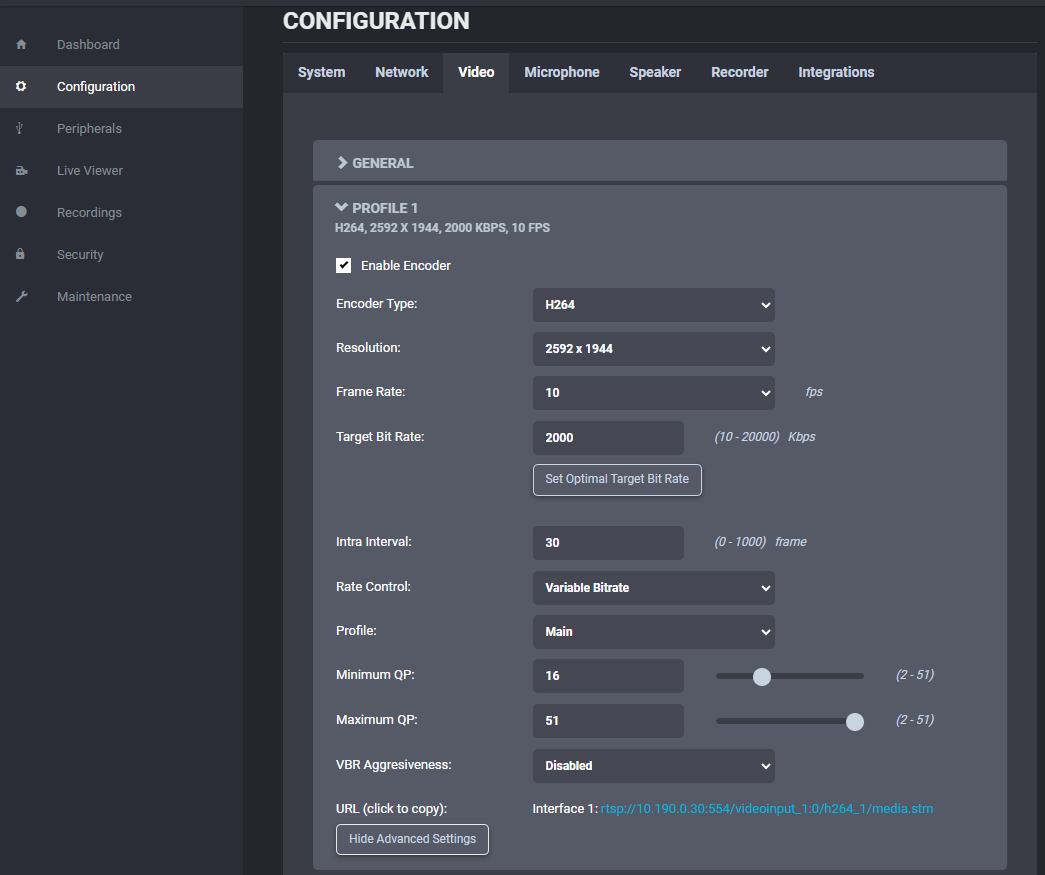
Use Profile 1 to set the main live stream properties, including resolution, bitrate, rate control, and stream access information.
Profile 2
The second profile is a secondary encoder configuration that can run at the same time as the other profiles.
This profile can be used for a lower-bandwidth or alternate stream while keeping the main profile active.
Profile 3
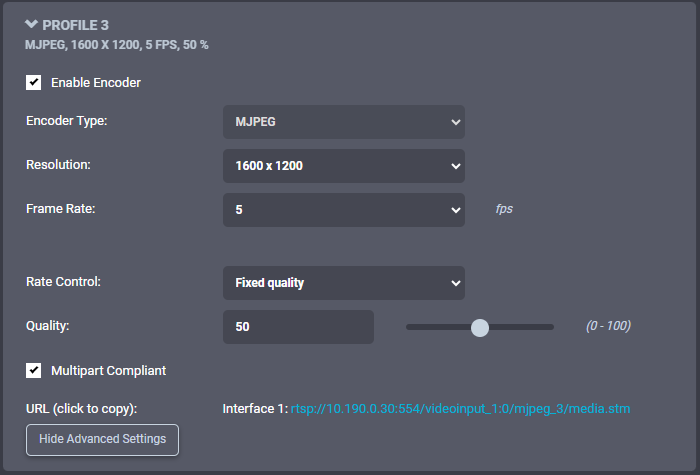
The third profile uses MJPEG and is configured separately from the H.264/H.265 profiles.
Available settings include:
- Enable or disable.
- Resolution.
- Frame rate.
- Rate control.
- Quality.
- Multipart compliance.
- Stream URL.
Advanced Settings
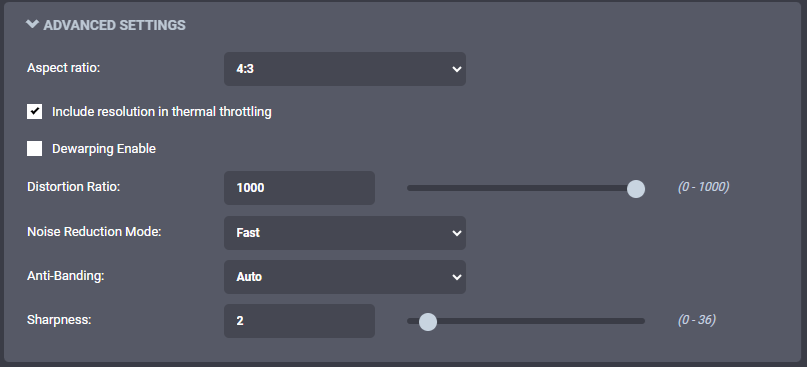
The Advanced Settings section provides controls for demanding conditions and thermal management.
Important options include:
- Whether resolution participates in thermal throttling.
- Automatic frame-rate reduction in low light.
- A fixed 25 fps sensor mode for integrations that require it.
- Orientation support.
- Image sharpness.
Text Overlay
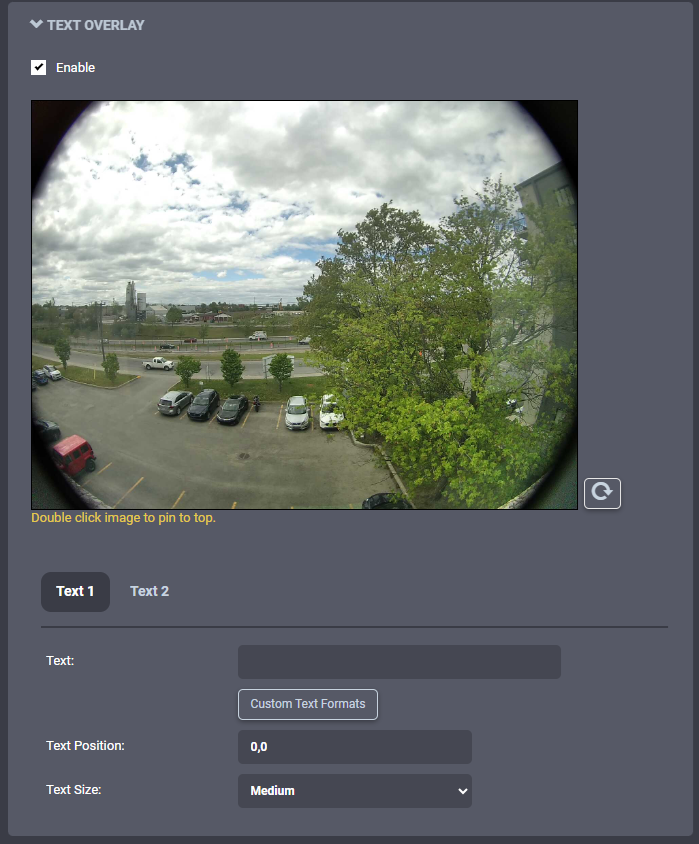
Use Text Overlay to enable overlay text on the camera output and manage the text fields displayed in the stream.
The exact fields and labels may vary by firmware version and configuration, but the section is used to add identifiable text information to video output.