Yardarm Holster Aware integration
This guide applies only to the PERCEPT BC200. It explains how to pair a Yardarm Holster Aware sensor with the body camera and verify the holster status information on the camera.
Yardarm sensors are designed to attach to a duty holster and report holster state wirelessly to supported body-worn cameras. On the body camera, this integration is used to pair the sensor, display holster state on the home screen, and surface a low sensor battery warning when service is required.
Note
Yardarm Holster Aware functionality is optional and may require activation, licensing, and deployment-specific configuration.
Pairing prerequisites
Before pairing, ensure that:
- The body camera is powered on and showing the normal ready screen.
- The Yardarm sensor is installed on the holster and prepared according to Yardarm documentation.
- If the deployment uses the Yardarm setup or calibration app, complete the holster-side placement and calibration before pairing it to the camera.
- Keep the sensor close to the body camera during pairing.
For button behavior and menu controls, see Buttons and Menu.
Sensor pairing
When Yardarm integration is enabled, a Holster entry appears in the camera menu and provides pairing-related pages.
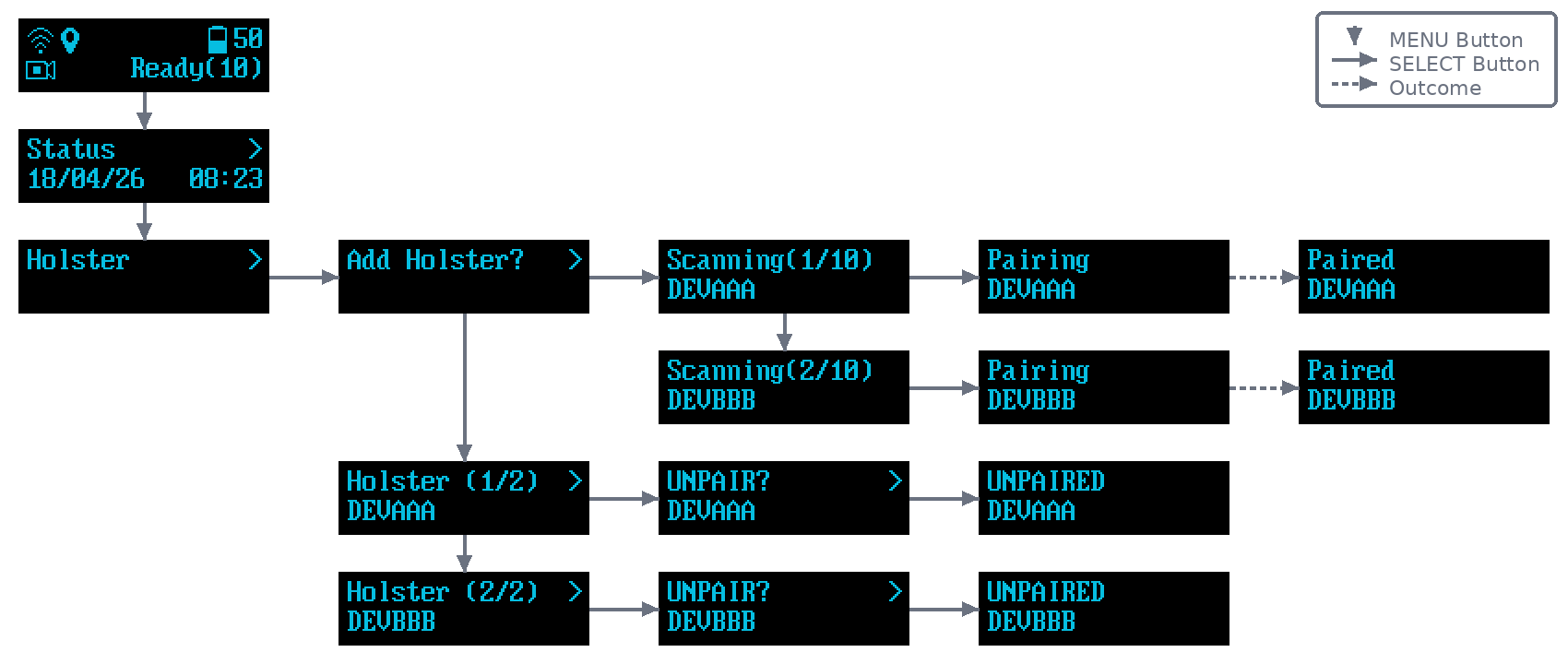
- From the ready screen, press MENU until Holster appears, then press SELECT to open it.
- Press SELECT on Add Holster?. The camera enters scanning mode.
- Connect the Yardarm sensor to a USB power source. This puts the sensor into pairing mode.
- When the sensor appears in the scan results, press SELECT to start pairing. If multiple sensors are found, press MENU to cycle through the results before selecting the intended sensor.
- Wait for the Paired confirmation, then press POWER to return to the ready screen.
Note
If more than one Yardarm device is available, pair one sensor at a time when possible. This makes it easier to select the correct device from the discovered-device list.
Holster status verification
After pairing, return to the body camera home screen and confirm that it shows the current holster state:
| Status | Display Screen | Description |
|---|---|---|
| Holster empty |  |
The paired holster is detected and currently empty. |
| Holster full |  |
The paired holster is detected and currently full. |
The status remains visible while the paired sensor is in range and operating normally. The body camera also displays a warning when the Yardarm battery becomes low.
If the deployment enables holster-driven recording workflows, the paired Yardarm sensor can also be used as the trigger source for those workflows.
Daily operation
Once paired, the Yardarm sensor normally stays associated with the camera until it is removed or replaced.
Recommended operator checks:
- At the start of shift, confirm the body camera shows normal Yardarm status.
- Check that holster insertion and removal are reflected correctly on the home screen.
Sensor removal
Use this procedure when replacing the holster sensor or pairing the body camera with a different Yardarm sensor.
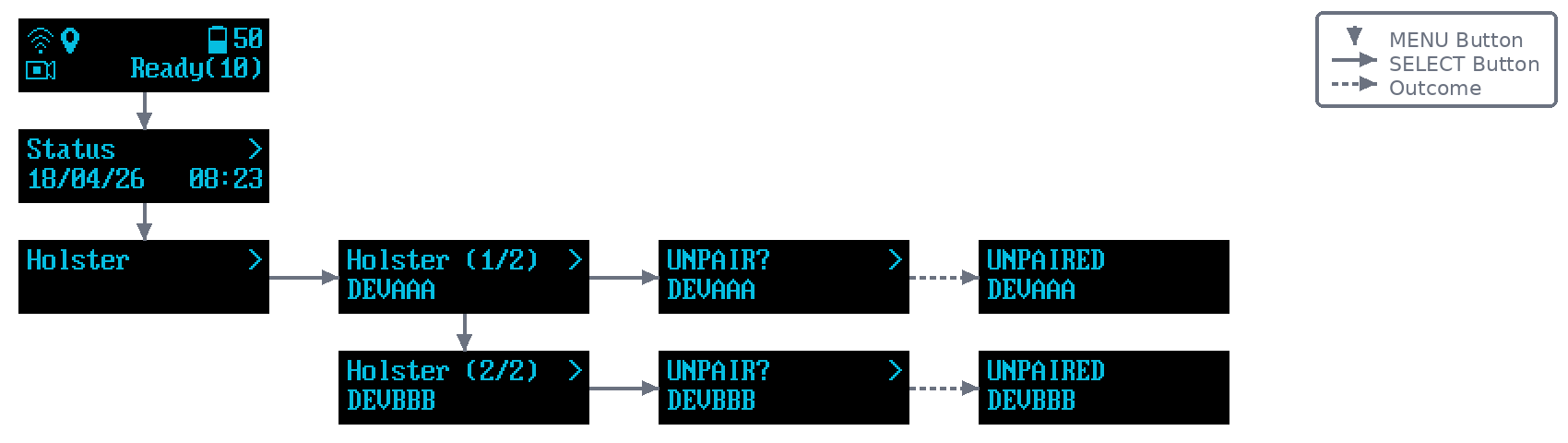
- Press MENU until Holster appears, then press SELECT to open it.
- Use MENU to cycle through the paired sensors until the sensor to remove is displayed, then press SELECT.
- Press SELECT on UNPAIR? to confirm removal.
- Wait for the UNPAIRED confirmation, then press POWER to return to the ready screen.
Troubleshooting
| Symptom | Possible cause | Resolution |
|---|---|---|
| Yardarm sensor is not detected during pairing | The sensor is not in pairing mode, is out of range, or another nearby sensor is interfering with discovery | Confirm that the body camera shows Scanning, then disconnect and reconnect the sensor to USB power. Move the sensor closer to the camera and move other Yardarm sensors away from the area. |
| Holster state does not update | The paired sensor is out of range or is not installed or calibrated correctly | Move the sensor within range of the body camera. Verify its installation and calibration according to the Yardarm documentation. |