Page non traduite
Cette page n'est pas encore disponible en français. Le contenu est affiché en anglais.
PTZ Keyboard
The ION-R100S can be operated remotely over the LAN with a network keyboard (with or without an optional joystick).
To get started, select the keyboard type and enter the keyboard IP address. If configured correctly, connection typically occurs within a few seconds. The ION-R100S web interface shows the current connection state, and the same state is also reported on the keyboard built-in status screen.
Note
Refer to the keyboard user manual for detailed instructions on configuring its IP address and the IP address of the remote device it connects to. Enabling DHCP on the remote device (for example, the ION-R100S) can cause connectivity issues if the IP address changes after a reboot or Ethernet reconnection.
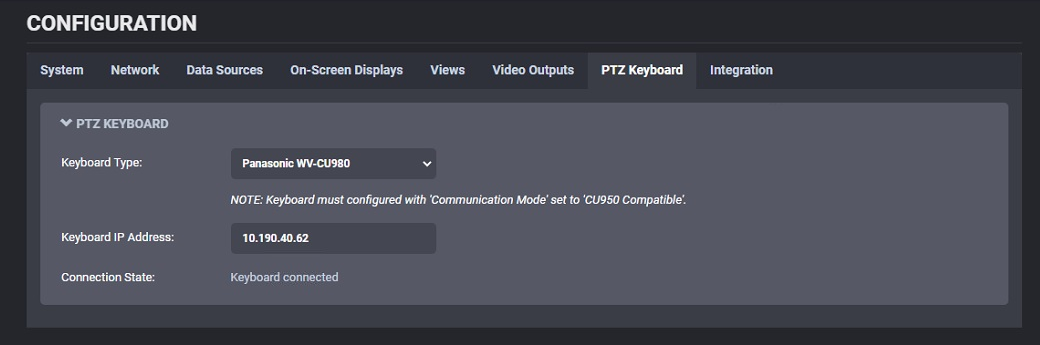
The network keyboard can select a specific tile and assign a data source from the list of available data sources. If an invalid tile or data source is selected, visual feedback is shown on the keyboard built-in status screen.
Command sequence:
- To select a tile, enter the tile number on the PTZ keyboard followed by the MON key. The tile remains selected until another tile is selected or the keyboard disconnects.
- To assign a camera to the selected tile, enter the corresponding data source number followed by CAM.
If a joystick is attached to the keyboard, pan/tilt/zoom functions are available for supported cameras (cameras that expose PTZ via ONVIF). Movement speed and direction follow the keyboard internal settings.
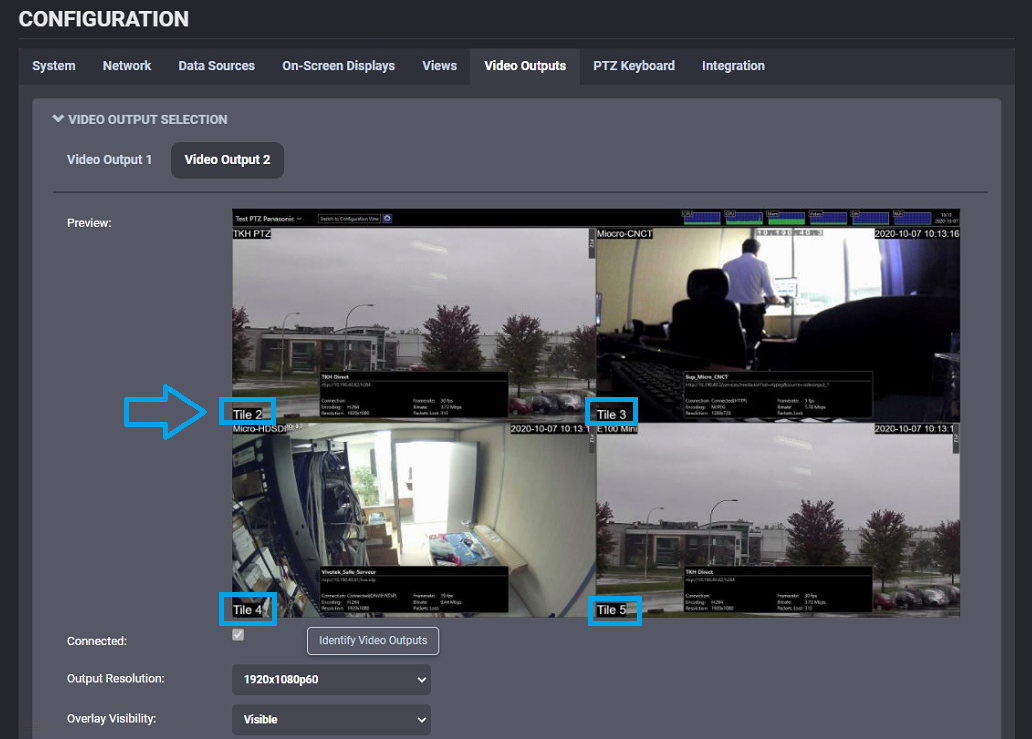
Tile and Display Identification
In Configuration > Video Outputs, use Tiles Identification to add on-screen labels showing each tile ID. The IDs can use global numbering (for example, Tile 16) or per-output numbering (for example, Tile 1-16). Because the ION-R100S has only one video output, both formats identify the same tile on that display.
For the related display-output settings, see Video Outputs.