Page non traduite
Cette page n'est pas encore disponible en français. Le contenu est affiché en anglais.
On-Screen Displays
On-Screen Displays (OSD) define what information appears over video streams and how it is rendered. For example, the camera name and current time can be displayed over video.
The ION-R150 supports up to 32 separate OSD configurations.
In the Configuration page, select the On-Screen Displays tab.
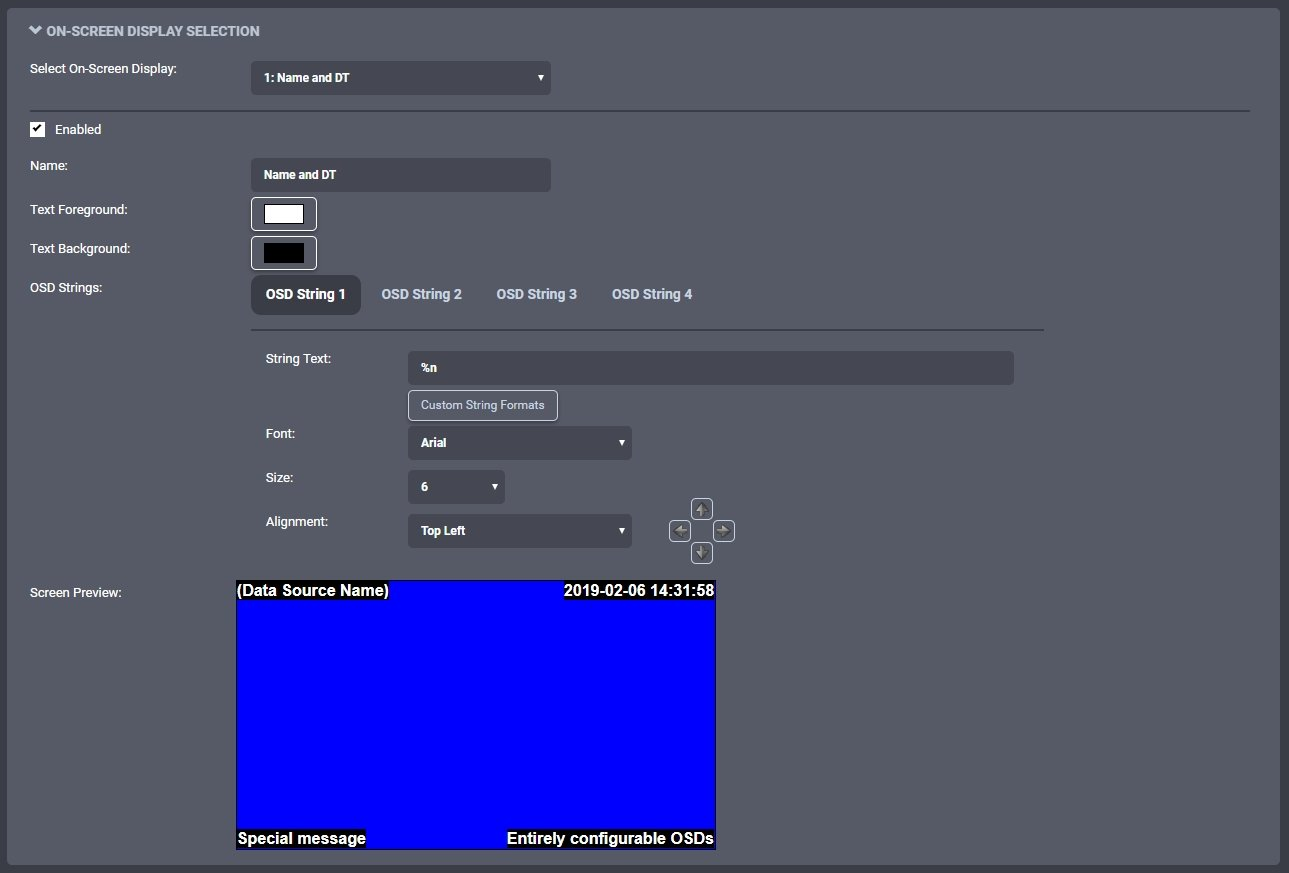
Screen Preview is a visual representation of the area where the OSD will be displayed. The preview updates automatically as the OSD configuration changes. Each OSD can display up to 4 text strings at configurable positions over the video.
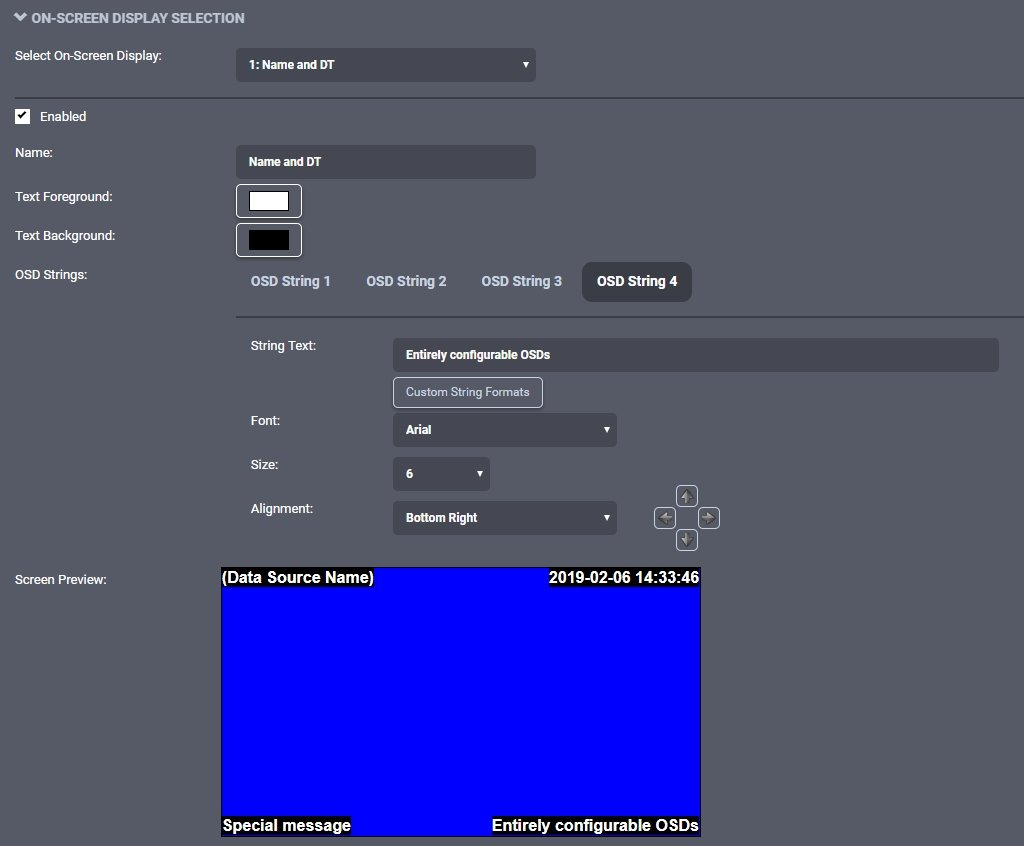
Click on Text Foreground to select the color of the OSD text. In the same fashion, click on Text Background to select the background color for the OSD text.
Configure each OSD string above the preview. Click on the OSD String 1 to configure the first OSD string. In String Text, type in the text to display. Select either Arial (used throughout this manual) or Impact as the Font. Text Size determines the displayed text size. Finally, Alignment determines the text anchor position (ex: top left corner). Use the Offset arrows to move the text relative to that anchor.
To configure other OSD strings, click on OSD String 2, 3 or 4 and set the appropriate text, alignment, and size.
Note
The ION-R150 provides a wide range of text sizes to ensure readability on display resolutions from HD-720 up to 4K.
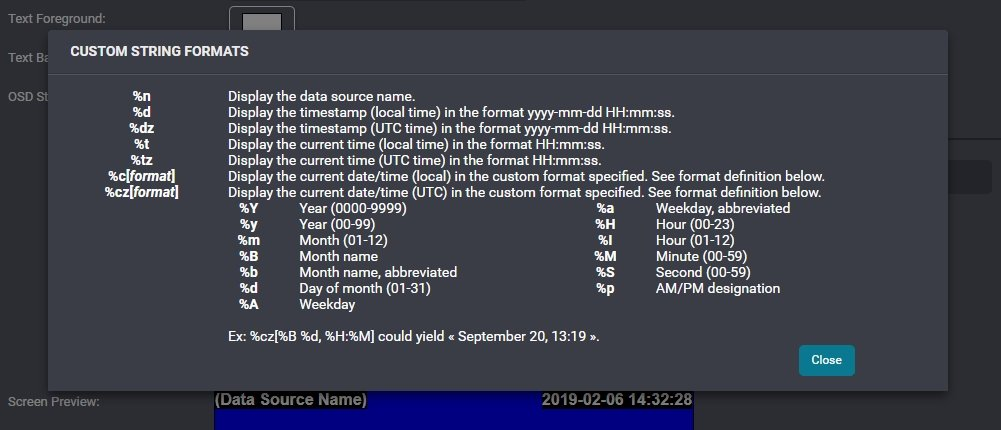
The ION-R150 supports a list of custom OSD strings to display dynamic information (ex: the camera name or the current time). Click on Custom String Formats to see the complete list.
Note
Using custom OSD strings allows greater flexibility. For example, displaying "Parking Lot" only works for one camera. Using %n (data source name) lets one OSD configuration work across multiple video streams.
To apply an OSD to a tile, go to the Views tab and assign the OSD in the tile settings. See Displaying an On-Screen Display in a View.