Page non traduite
Cette page n'est pas encore disponible en français. Le contenu est affiché en anglais.
Video Outputs
Video Outputs define settings for each TV or monitor connected to the ION-R300, such as display resolution and output orientation.
The ION-R300 supports up to three display outputs.
In the Configuration page, select the Video Outputs tab.
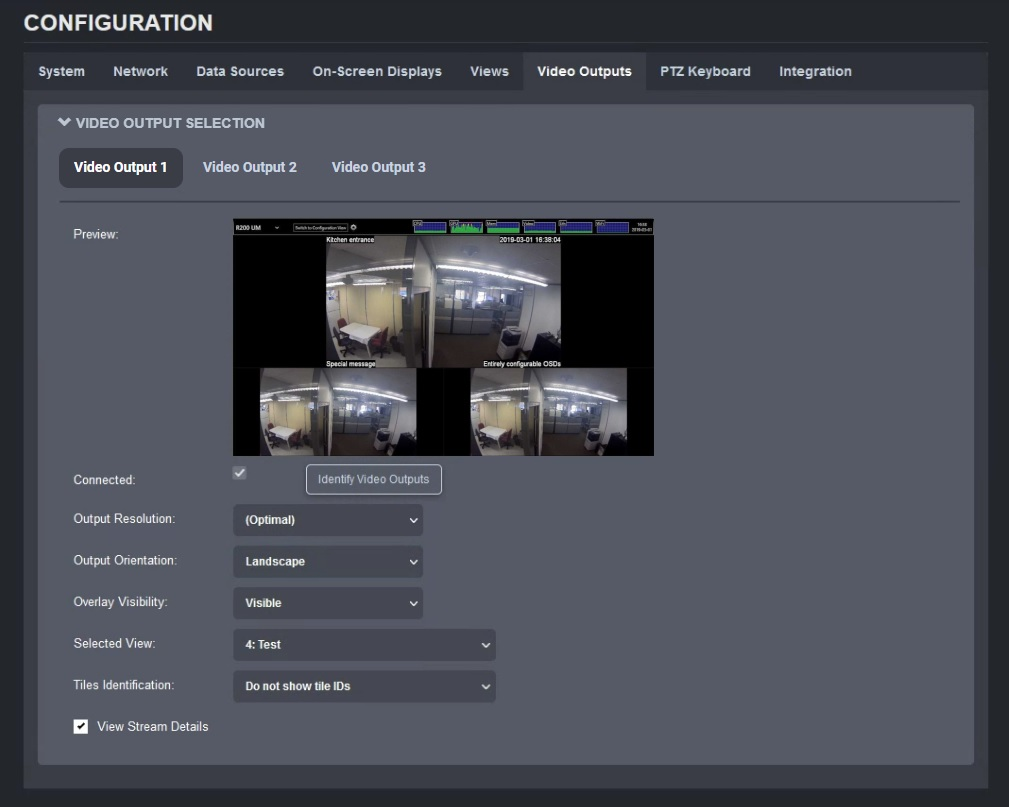
The configuration of each display output is as follows:
- Connected (read-only) Indicates whether the display output is connected to a physical display.
Note
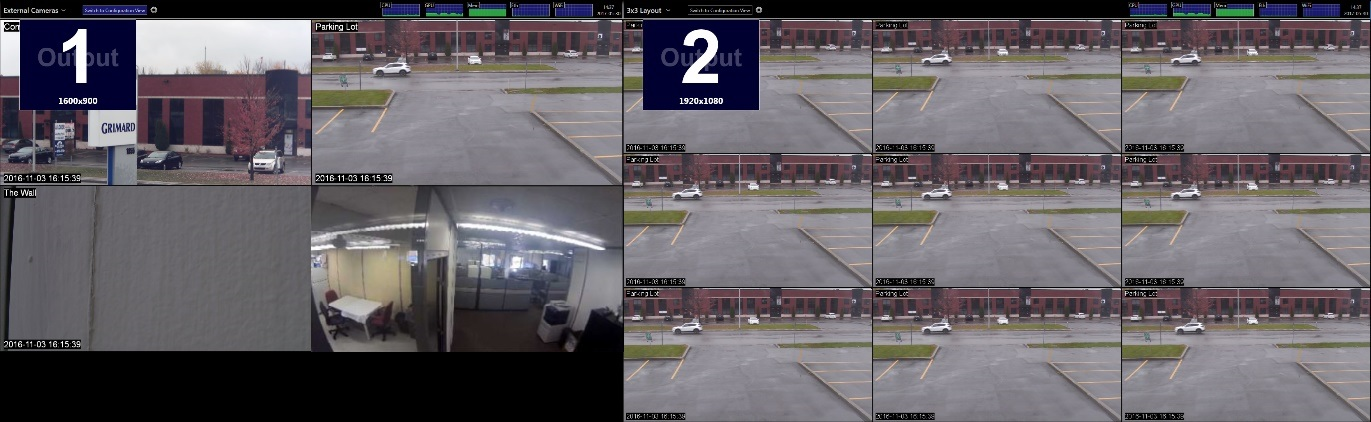
When a single display is connected to the ION-R300, that display is always referred to as Video Output 1 regardless of the connector the display is connected to. If two or three displays are connected to the ION-R300, click on Identify Video Outputs to determine which is Video Output 1, 2 and 3.
-
Output Resolution Determines the display resolution used for this output. See below for details.
-
Output Orientation Determines the orientation of this output. The available options are Landscape, Portrait, Landscape (Flipped) and Portrait (Flipped).
-
Overlay Visibility The overlay is the utility bar at the top of the screen. It can always be displayed, or it can automatically hide after use. When auto-hidden, moving the mouse to the top of the screen shows the overlay temporarily.
-
Selected View Selects the view to display on this output. Changing this value is equivalent to selecting a view from the view selector in the top-left corner of the screen.
-
Tiles Identification Adds a small static on-screen label for each tile showing its ID. This is primarily intended for use with a physical PTZ keyboard, allowing an operator to select a specific tile using the keyboard numeric selector. For the configurable OSD alternative and PTZ keyboard usage details, see Tile and Display Identification.
-
View Stream Details Displays live diagnostics for each video tile.
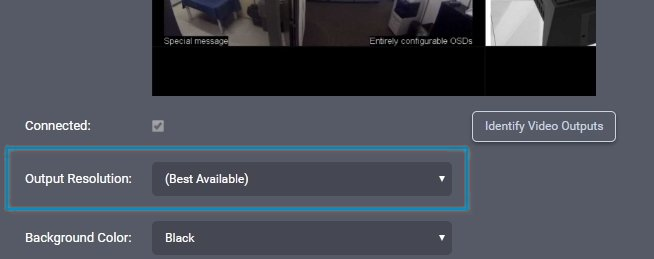
By default, display outputs automatically select the best resolution supported by the TV or monitor. In most cases, this is the desired behavior. To use a different resolution, click Output Resolution to display the list of supported resolutions.
Note
If the ION-R300 is connected to multiple displays and Display Output 1 is disconnected, another display automatically becomes Display Output 1, and the secondary or tertiary output is considered disconnected. A common mistake is to configure a disconnected output. Use Identify to confirm that the selected output corresponds to the intended display.
If a display is disconnected, the ION-R300 retains the selected output resolution in case the disconnection was accidental. Reconnecting the same display preserves the output resolution. If a different display is connected in its place, it may not support the same resolutions. In that case, the output resolution automatically reverts to Best Available to prevent compatibility issues.
View Stream Details
To help diagnose connectivity or performance issues, the ION-R300 can display live details for each video tile. From the live display, click the stream-details button in the top utility bar.

The stream details include:
- The data source name
- The connection URI
- The current connection status
- The video stream encoding and resolution (not the tile size)
- The video stream framerate
- The video stream bitrate
- The network packet loss count
Note
Packet loss counter details:
- Packet loss count is cumulated only while stream details are open.
- Closing stream details resets the counter.
- Packet loss from before stream details are opened is not shown.
- Packet loss metrics are not saved.
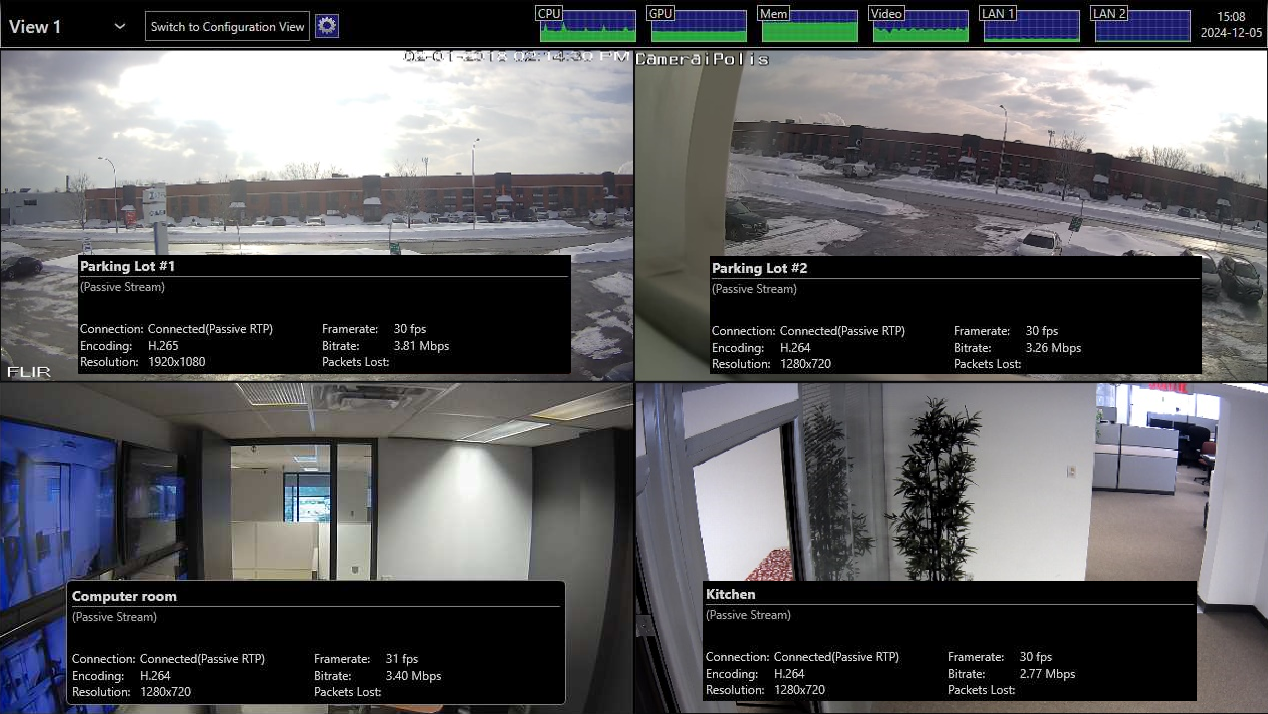
Stream details can also be remotely enabled from Configuration > Video Outputs using the View Stream Details option.