Security
User Account Management
This section allows the administrator to manage user accounts on the device (create account, remove account, reset user passwords). If the logged-in user has any role other than Administrator, this section only shows the option to change that user's own password.
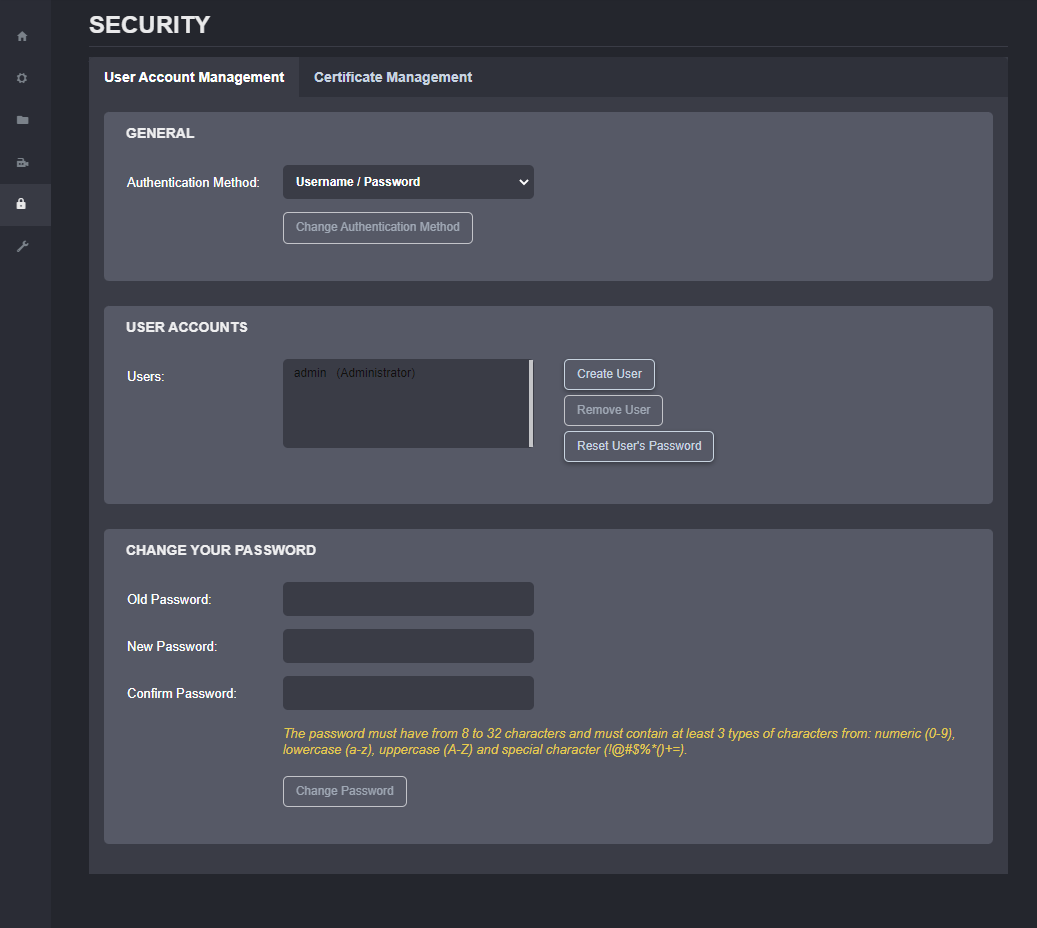
Clicking on the Create User button will open the dialog window shown below.
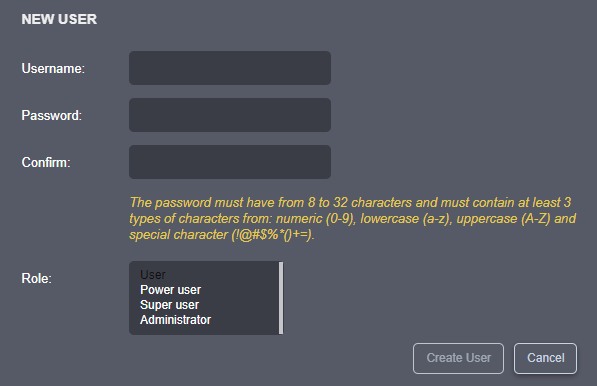
Each new user account must have a role assigned to it. There are four user roles available: Administrator, Superuser, Poweruser, and User. The table below summarizes the permissions for each role.
| Role | Description |
|---|---|
| User | Can access product information, system status, and resource usage information. Can access Media Library. Can change their own password. |
| Poweruser | Includes all User permissions. Can change all configuration settings. Can access the Live PTZ section. Can access the Maintenance section, but cannot perform a firmware update or reset the device to factory default settings. |
| Superuser | Includes all Poweruser permissions. Can access all functionality in the Maintenance section. |
| Administrator | Includes all Superuser permissions. Can create or modify all user accounts. Can manage certificates. |
The built-in administrator account cannot be deleted. Password setup requirements are described in Admin Account Setup.
Warning
If the built-in administrator account password is lost and the device is enrolled in PERCEPT Cloud and online, reset the administrator account from PERCEPT Cloud. If Cloud recovery is unavailable, restore administrative access by performing a factory reset through Safe Mode Recovery.
Certificate Management
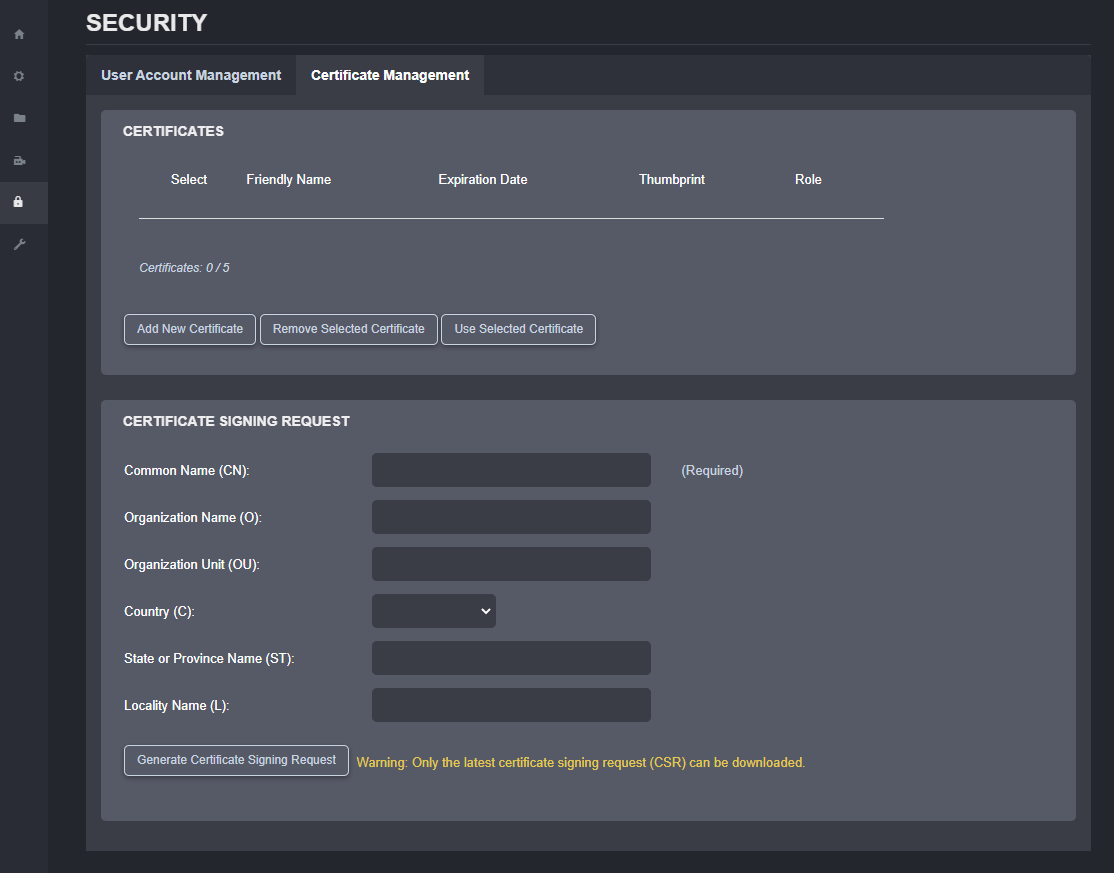
This section allows the administrator to manage custom SSL/TLS certificates.
The web interface and HTTP-based APIs (ION API) of the SDS can be accessed using HTTP or HTTPS. In HTTPS, the communication protocol is encrypted using Transport Layer Security (TLS) or Secure Sockets Layer (SSL). The SDS supports TLS 1.2 (support for the older TLS 1.0 and TLS 1.1 has been disabled since firmware v6.7.0.0) and uses a self-signed certificate generated during manufacturing, making it unique for each device. The default certificate can be replaced with a custom SSL/TLS certificate.
Note
The only formats accepted for SSL/TLS certificate files are *.pfx or *.p12.
A Certificate Signing Request (CSR) is a block of encoded text forwarded to a Certificate Authority (CA) when users apply for a custom SSL/TLS certificate. CSR is created on the server where the certificate will be installed, in this case on the SDS. CSR includes information such as domain name, organization name, locality, and country. The request also contains the public key, which will be associated with the certificate generated, and the same server also generates the private key. When developing the certificate, the CA only uses the public key. The private key must be retained and kept secret. It is paired with the public key and is required for the certificate to function.
A CSR contains:
-
Common Name (CN): Fully qualified domain name of the server, such as ionodes.com
-
Organization Name (O): Legal name of the organization such as ‘IONODES Inc.’
-
Organization Unit (OU): Division of the organization, such as IT Department, or Marketing
-
Country (C): such as Canada
-
State or Province Name (ST): such as Quebec
-
Locality Name: such as Montreal
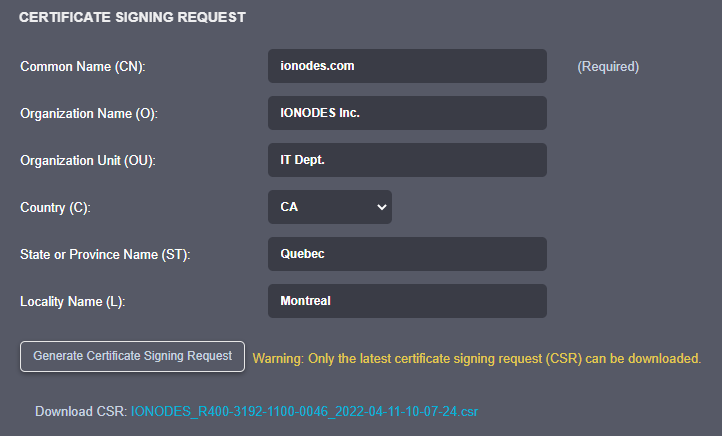
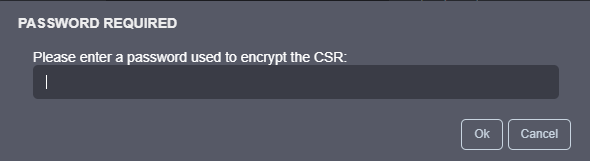
Click “Generate Certificate Signing Request” and enter a password to encrypt the CSR. The new CSR file (*.csr) is then available for download.
The *.csr file must be sent to either a local certificate authority (it can be a local server running this service) or to a global certificate authority (IdenTrust, DigiCert, GoDaddy, etc.). Based on the CSR the CA server will generate a certificate using the CA tools on that server. This is usually a *.pfx or *.p12 file that can be uploaded and used on the decoder.
Note
The tools required to generate SSL/TLS certificates are not readily available on a standard Windows machine. This feature is mainly intended for enterprise deployments that require full control of certificate management within their network.
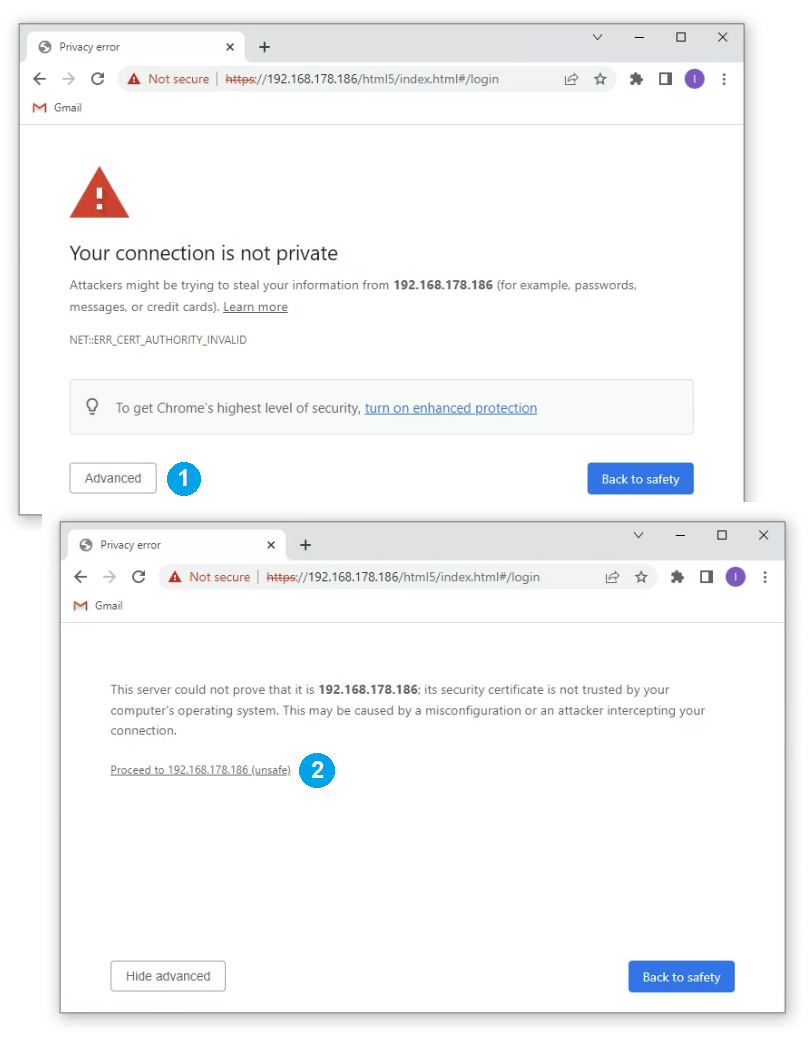
When using HTTPS with the default self-signed certificate, the browser may show a warning. Click “Advanced” (1), then “Proceed…” (2) to continue loading the web interface.