Troubleshooting
Common Issues and Resolutions
| Symptoms | Possible cause | Resolution |
|---|---|---|
| The ION-R300 does not power up | Power is not connected or the power source is not compatible | Verify power connections and use the supplied/approved power adapter. |
| A data source does not display video | Invalid URI, incorrect credentials, or network reachability issue | Verify URI, credentials, and network reachability. |
| The device appears unresponsive during operation | Decoding load is too high for the current stream complexity | Use Safe Mode to recover access and reduce stream complexity. |
| The ION-R300 does not connect with PERCEPT Cloud | Internet access or onboarding/integration settings are incomplete | Verify the PERCEPT Cloud settings in Integrations. Review onboarding and network requirements in the PERCEPT Cloud integration guide. |
Safe Mode Recovery
Safe Mode is a local recovery mode for situations where normal operation or normal sign-in is not possible.
Use Safe Mode when:
- The ION-R300 becomes unresponsive during operation.
- Administrator account access is lost and cannot be recovered through PERCEPT Cloud.
Use these alternatives when available:
- If the unit is responsive and administrator account access is available, use the standard web interface procedure in Factory Reset.
- If the unit is enrolled in PERCEPT Cloud and online, reset the administrator account from PERCEPT Cloud.
Note
In Safe Mode, all data sources are temporarily disabled so the device no longer decodes video streams while recovery actions are performed. Entering Safe Mode does not reset the device configuration.
- Power off the ION-R300.
- Connect a monitor, USB keyboard, and USB mouse.
- Power on the ION-R300.
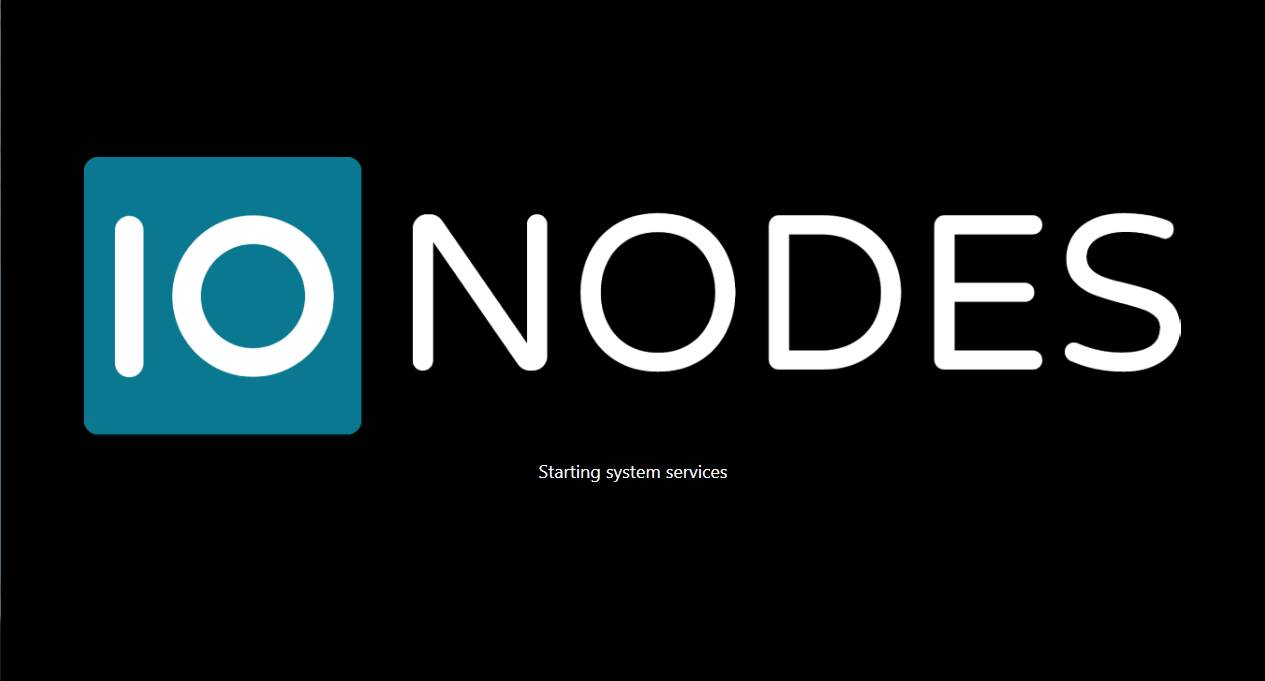
- When the device displays the IONODES Starting system services splash screen shown below, press and hold both the LEFT SHIFT and RIGHT SHIFT keys on the keyboard.
Note
It takes only a few seconds for the ION-R300 to start system services, and Safe Mode can only be enabled during that step. If the device finishes booting before the key combination is pressed, restart the device and try again.
When start-up completes, move the mouse pointer to the top of the screen. A banner with a Reset to Factory Settings button appears.

Recover an Unresponsive Configuration
Use this procedure when normal operation is affected by excessive decoding load or a problematic video stream. A factory reset is not required to correct the configuration.
- Click Switch to Configuration View and log in as administrator.
- Correct the configuration that caused the issue. Reduce the number of concurrent video streams or their combined bitrate, or correct/remove a problematic data source. Review Data Sources and Views as needed.
- Restart the device to leave Safe Mode and return to normal operation. See Reboot.
Factory Reset in Safe Mode
Use a factory reset when administrator access cannot be recovered through PERCEPT Cloud, or when restoring factory settings is necessary rather than correcting the existing configuration.
Warning
A factory reset discards the existing device configuration. To recover an overloaded configuration without discarding it, use the procedure above instead.
- Click Reset to Factory Settings.
- Select Include Network Settings if network settings should also be reset to DHCP. Leave it unchecked to retain the current network settings.
- Click Reset to Factory Settings in the confirmation dialog.
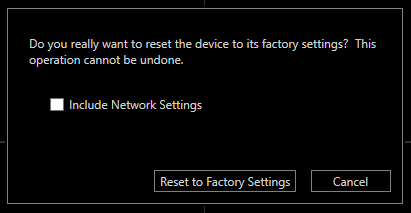
After the reset process starts, the unit reboots and reloads factory settings.