Cameras
Add a camera
-
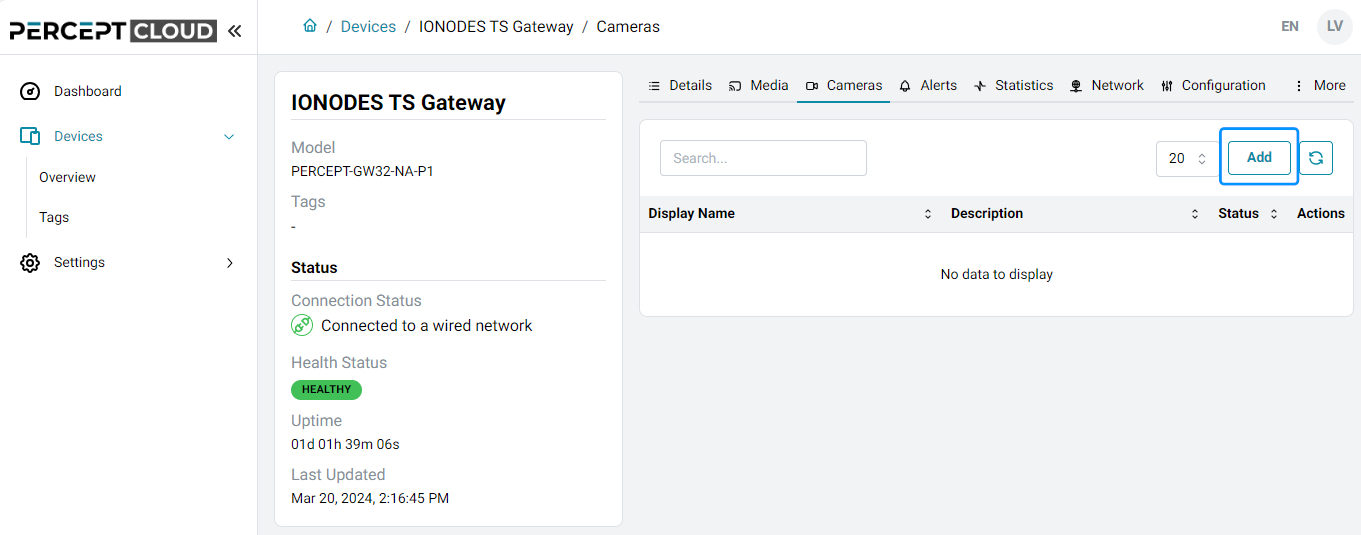
Open the Gateway's device profile, select Cameras, and click Add.
-
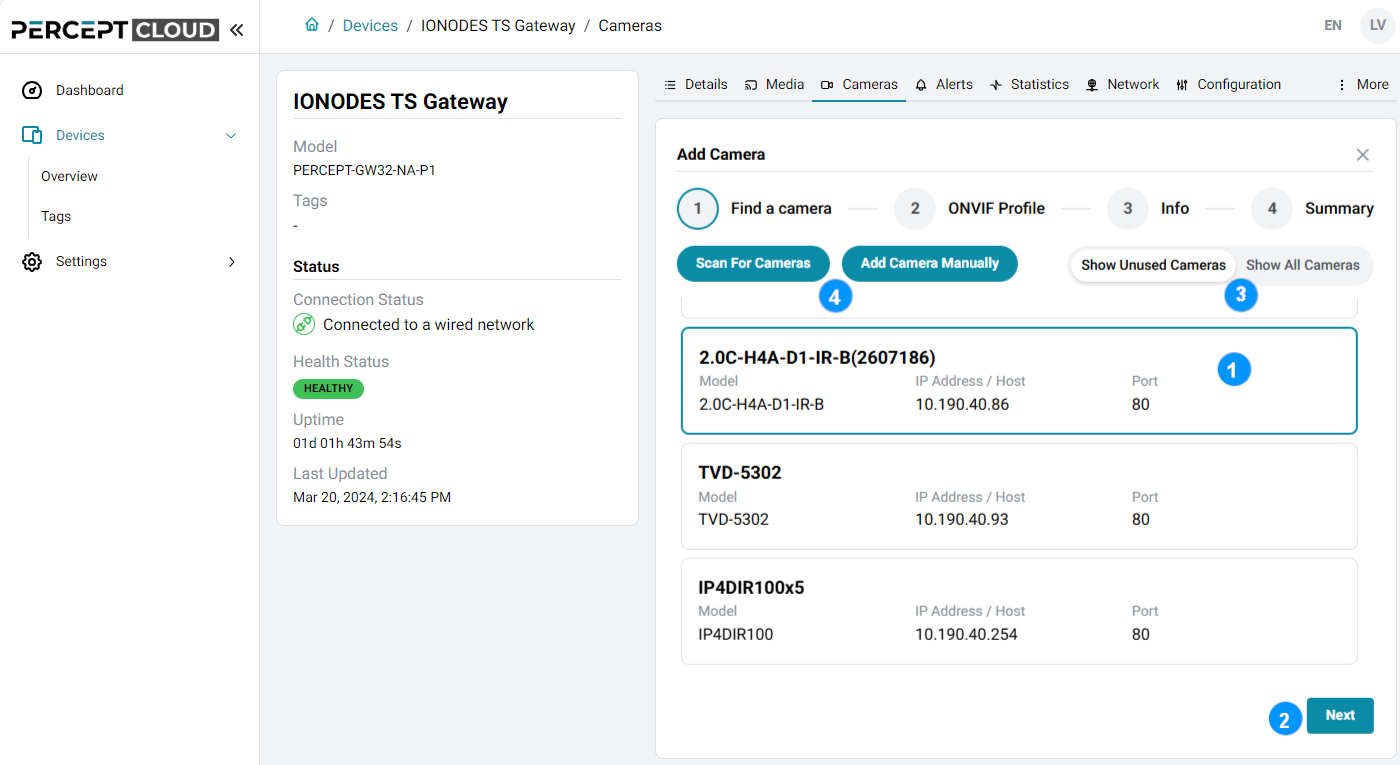
Select a camera from the discovery list and click Next. To add an ONVIF camera with discovery disabled, use Add Camera Manually and enter its IP address.
-
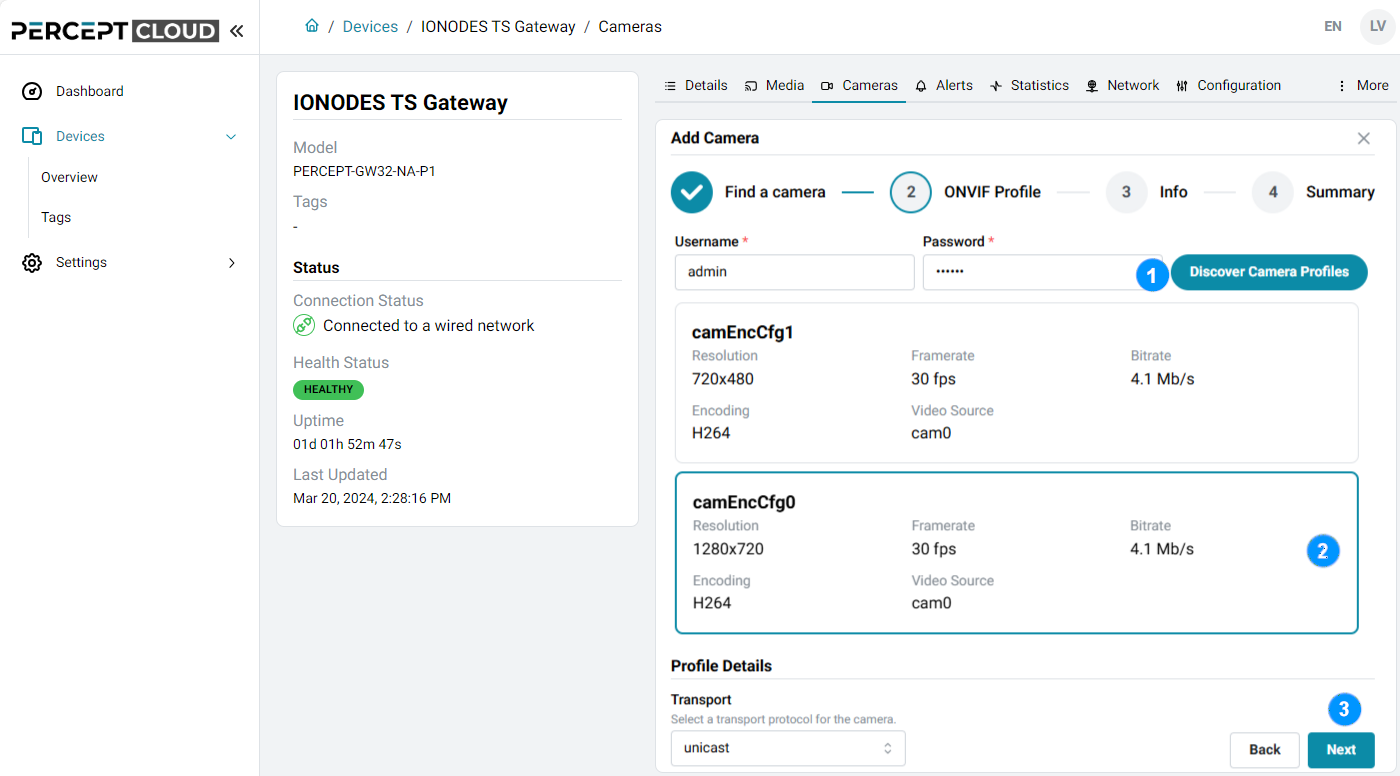
Enter valid ONVIF user credentials and click Discover Camera Profiles.
-
Select an ONVIF media profile and click Next.
-
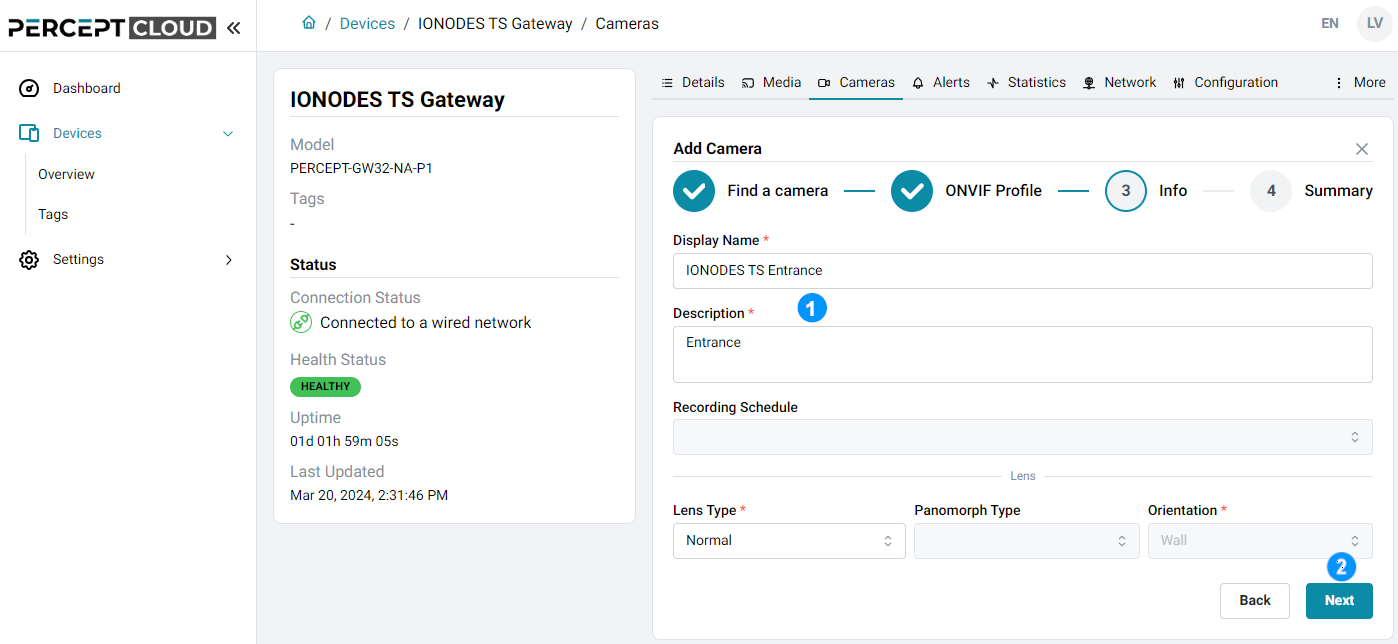
Enter a Display Name and Description, then click Next.
-
Review the Summary tab and click Done to add the camera. Use Back to change the settings.
The discovery list shows ONVIF-compatible devices available through the Gateway's network interfaces. Cameras already added are hidden by default; change the filter to include them or click Scan For Cameras to scan again.
Note
PERCEPT Gateway supports H.264 video only. Only profiles using H.264 are listed.
Note
For real-time viewing over the internet, the recommended profile settings are a maximum resolution of 1080p, a frame rate of 10 fps, and a bitrate of 2 Mbps.
Camera profile
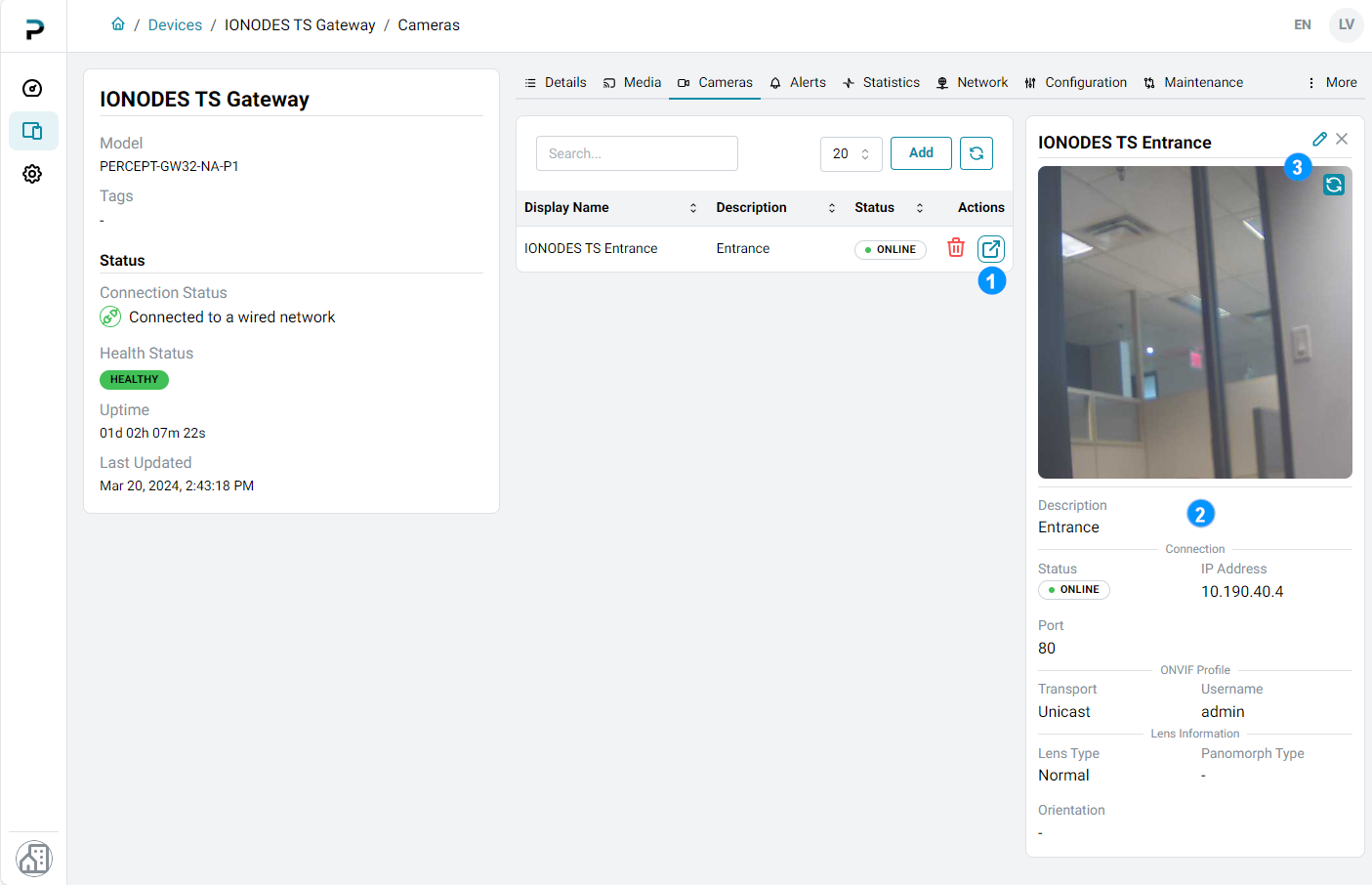
- Click Open Camera Profile for a camera to view its information and preview snapshot.
- Use the icon buttons to refresh the snapshot, edit camera information, or close the profile.
Note
Preview snapshots are available only for cameras that support snapshots over ONVIF.