PERCEPT Cloud Access Service (PCAS)
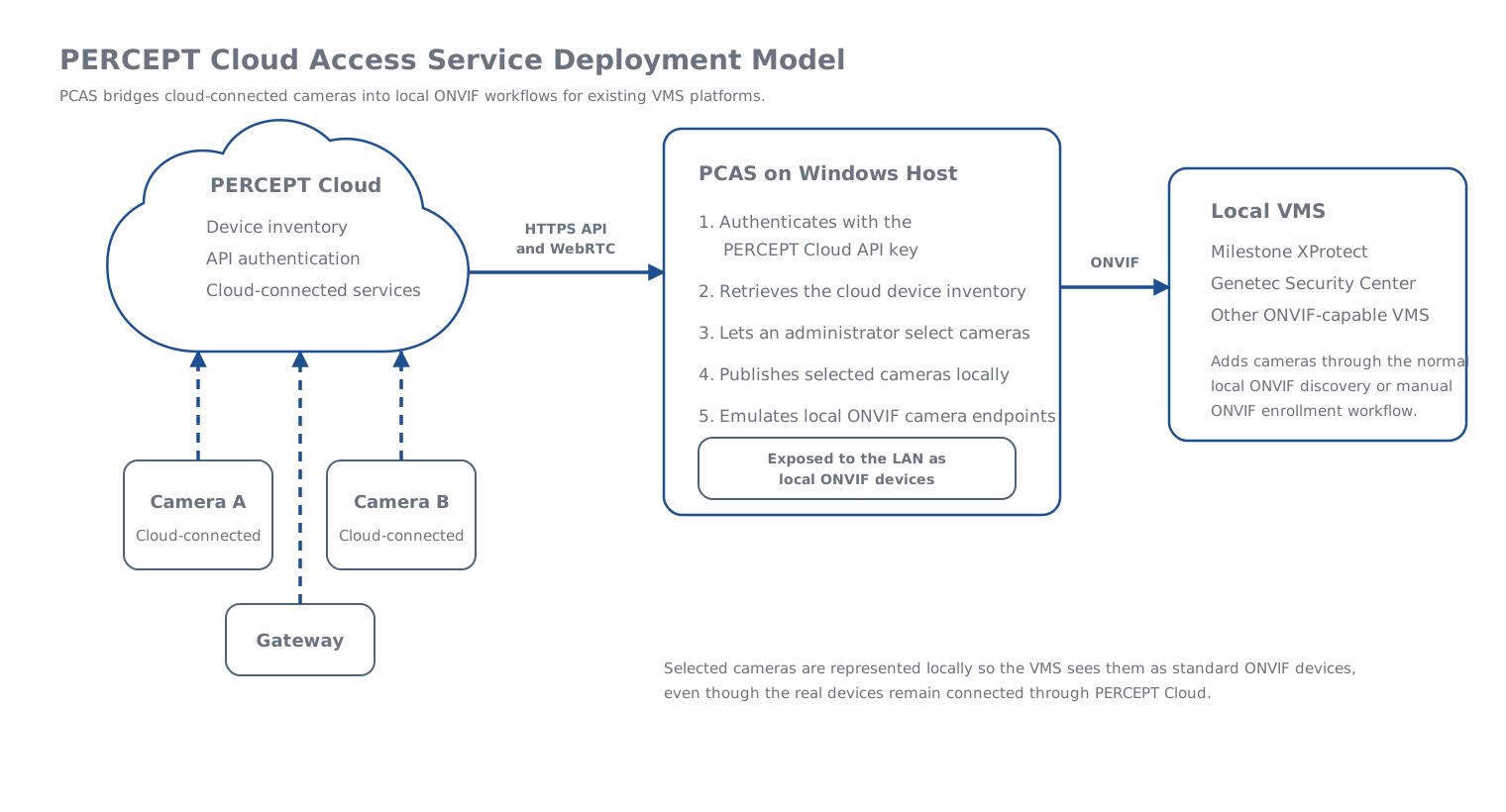
PERCEPT Cloud Access Service (PCAS) is a Windows-hosted bridge that connects PERCEPT Cloud cameras to a local video management system (VMS). It provides local ONVIF endpoints for selected cameras and a web interface for configuration and administration.
Use ONVIF integration for a VMS that supports standard ONVIF enrollment, or the Genetec Security Center plugin for automatic camera synchronization in Security Center.
Requirements
System requirements
| Component | Recommendation |
|---|---|
| CPU | 4 cores |
| RAM | 8 GB |
| Operating system | Windows 10 or later, or Windows Server 2019 or later |
Host sizing depends on the number of exposed cameras and concurrent streams. Keep the PCAS host on a reliable, secured system with LAN access to the VMS and internet access to PERCEPT Cloud. Inbound internet exposure is not required.
Use a PERCEPT Cloud account and organization, and a dedicated application key for the deployment. See Account Creation, Organization Creation, and App Key Generation.
Network requirements
Allow the following outbound connections from the PCAS host.
| Protocol / Ports | Purpose |
|---|---|
| UDP / 53 | DNS queries |
| UDP / 123 | Time synchronization |
| TCP / 443 | TLS traffic |
| UDP / 49152-65535 | Media streaming |
| UDP & TCP / 3478 | Media streaming |
| Domain name | Purpose |
|---|---|
prod-east-us-webpubsub.webpubsub.azure.com |
Notification/event pipeline |
keycloak.east-us.perceptcloud.net |
Security management |
organization.api.east-us.perceptcloud.net |
Organization management |
device.api.east-us.perceptcloud.net |
Device management |
media.api.east-us.perceptcloud.net |
Media streaming |
live-*.millicast.com |
Media streaming |
turn-*.dolby.io |
Media streaming |
ONVIF clients require inbound LAN access to the HTTP ports assigned by PCAS. Each enabled camera has an endpoint in the following format:
http://<pcas-host>:<port>/onvif/device_service
The management web interface uses configurable HTTP or HTTPS ports and can be accessed from localhost or the LAN, depending on the service configuration.
Installation
-
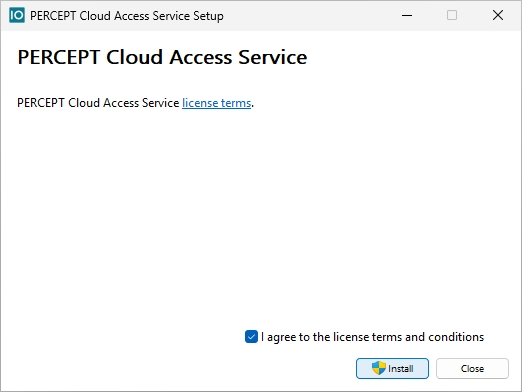
Run the PERCEPT Cloud Access Service installer on the Windows host and complete the setup wizard.
-
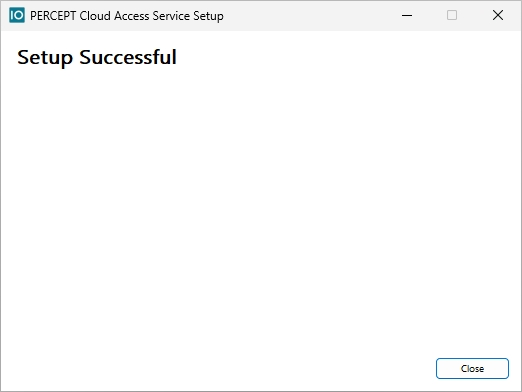
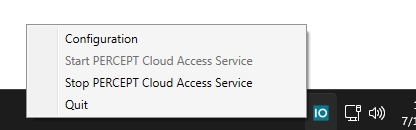
Close the wizard when installation completes. The PCAS tray application is added to the Windows notification area and provides access to configuration and service controls.
First sign-in
-
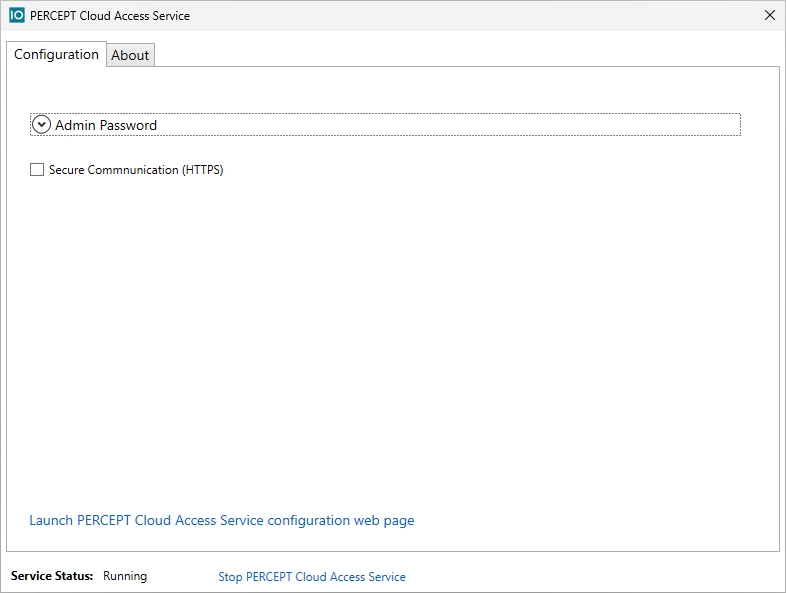
Open the tray application and select Configuration.
-
On the dashboard, click Launch PERCEPT Cloud Access Service configuration page.
-
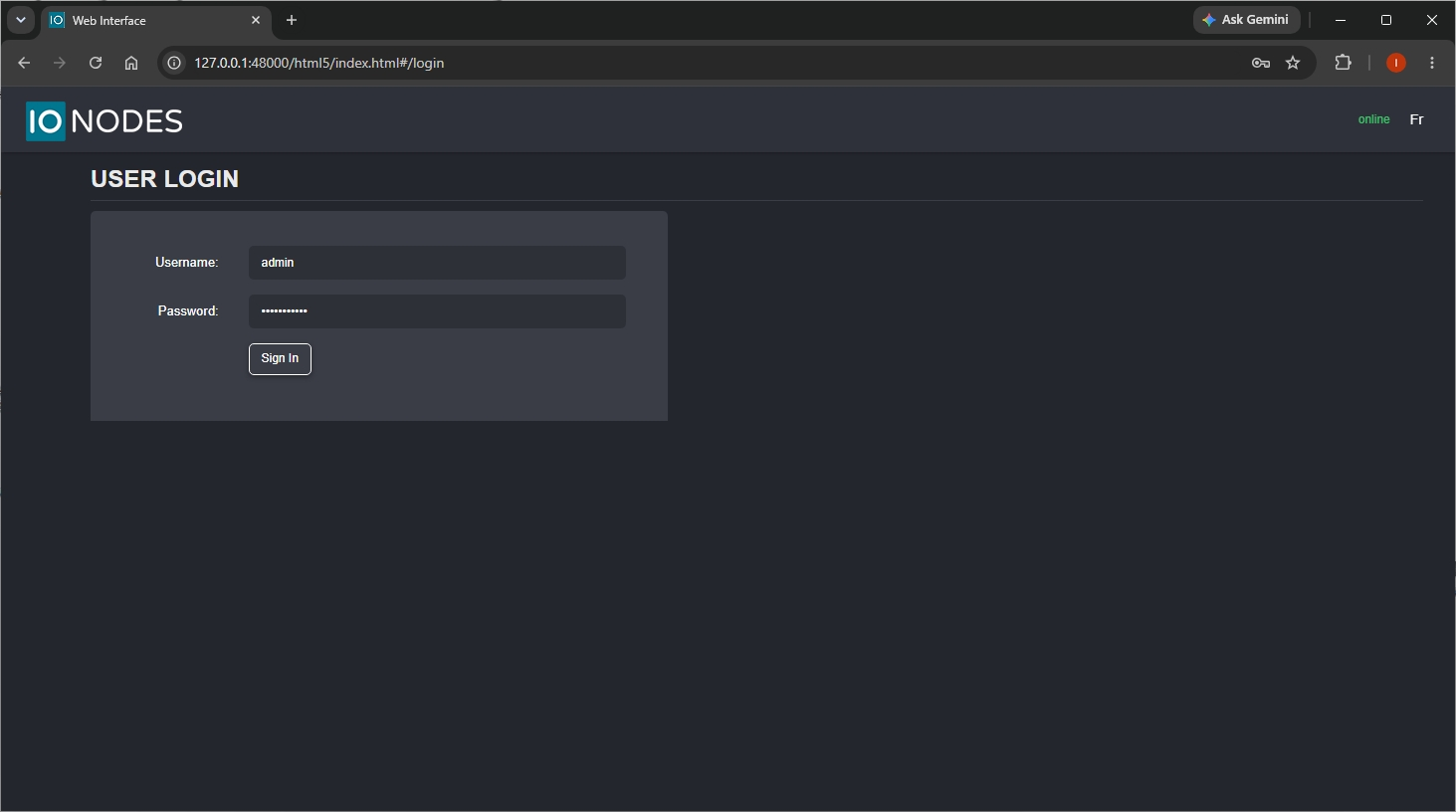
Sign in to the web interface.
-
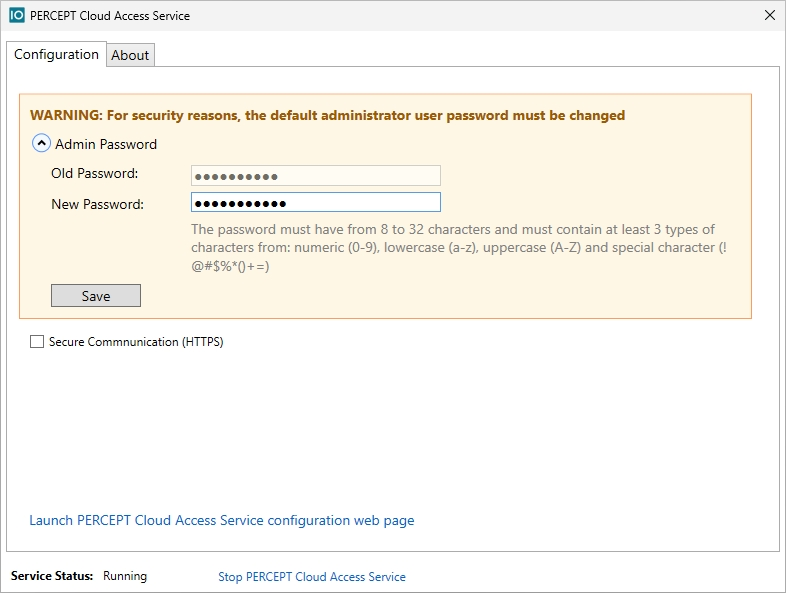
Update the administrator password when prompted at first sign-in.
Warning
The browser may display a certificate warning when the service uses a default or self-signed HTTPS certificate. Continue only after confirming that the address belongs to the expected PCAS host.
ONVIF integration
Connect an organization
-
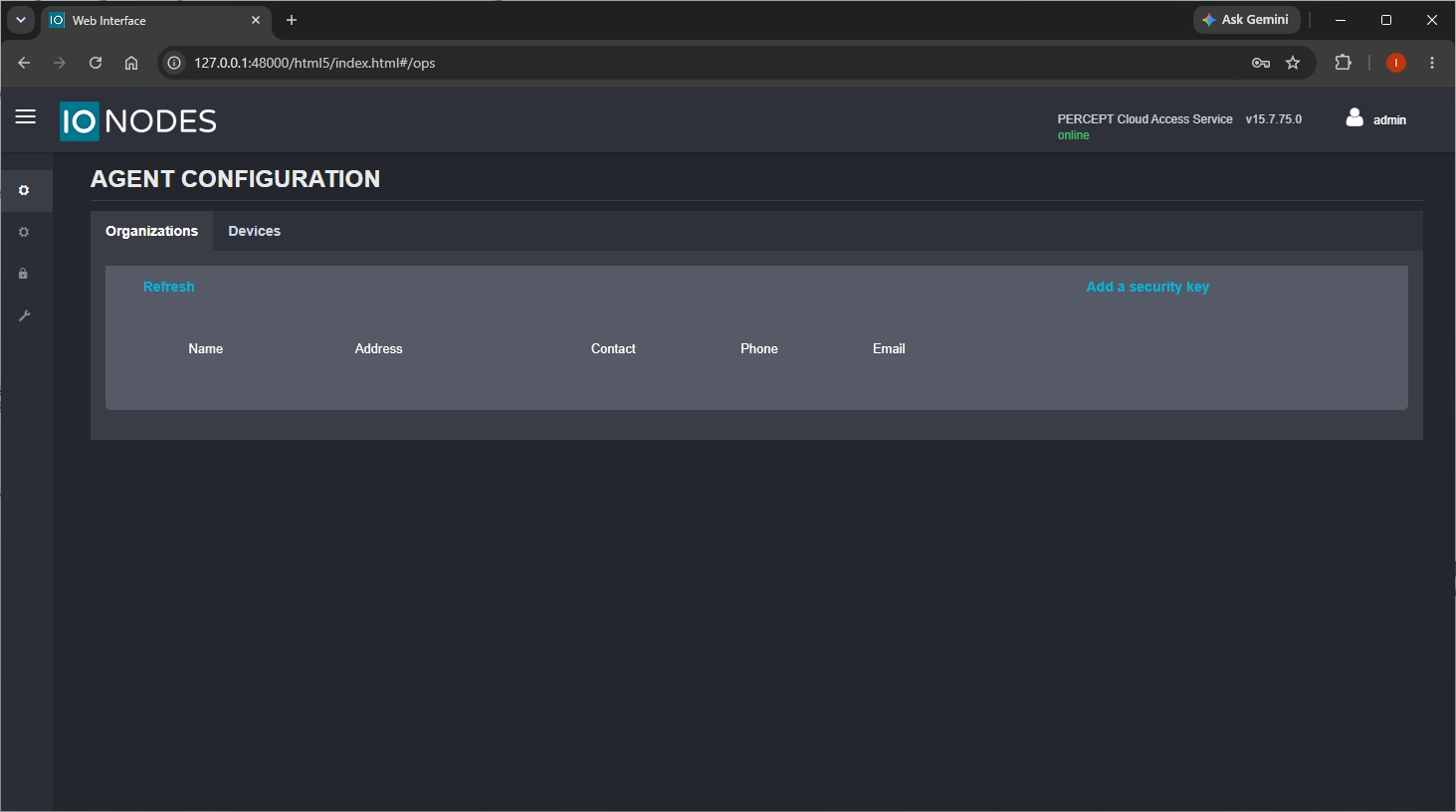
In the PCAS web interface, open the organization list.
-
Add the PERCEPT Cloud application key for the organization.
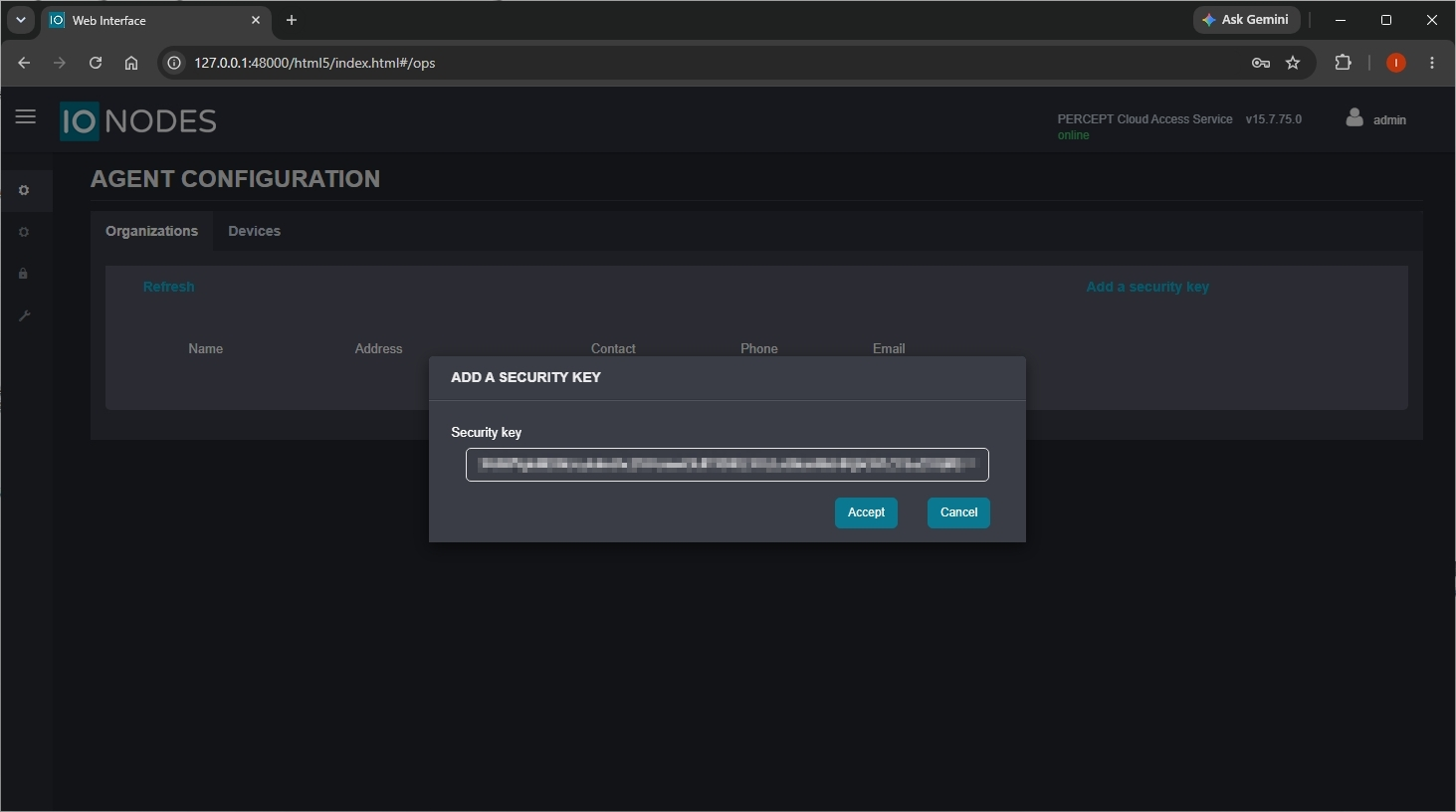
-
Select the linked organization.
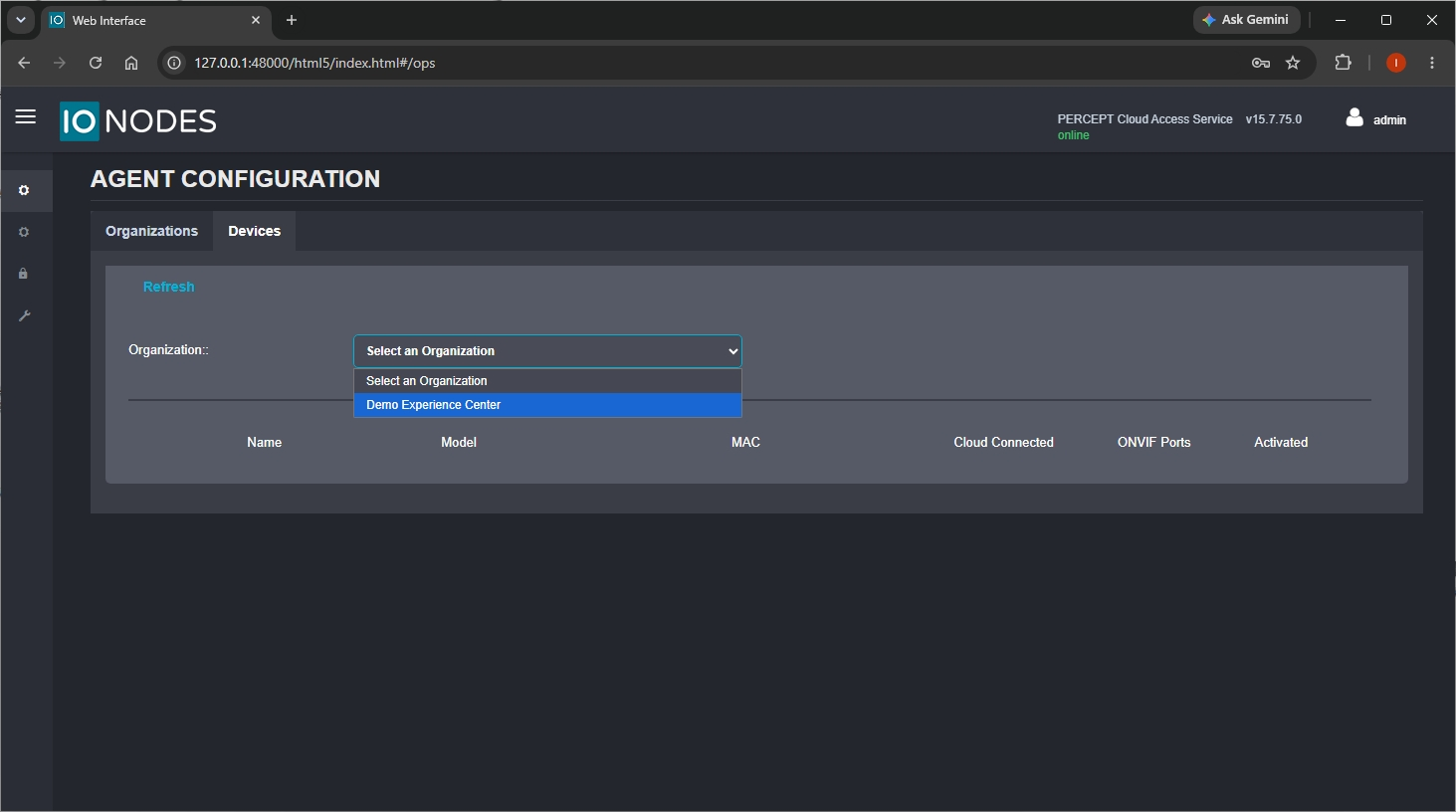
-
In the synchronized device list, enable the cameras to expose to the VMS. Disable cameras that are not required.
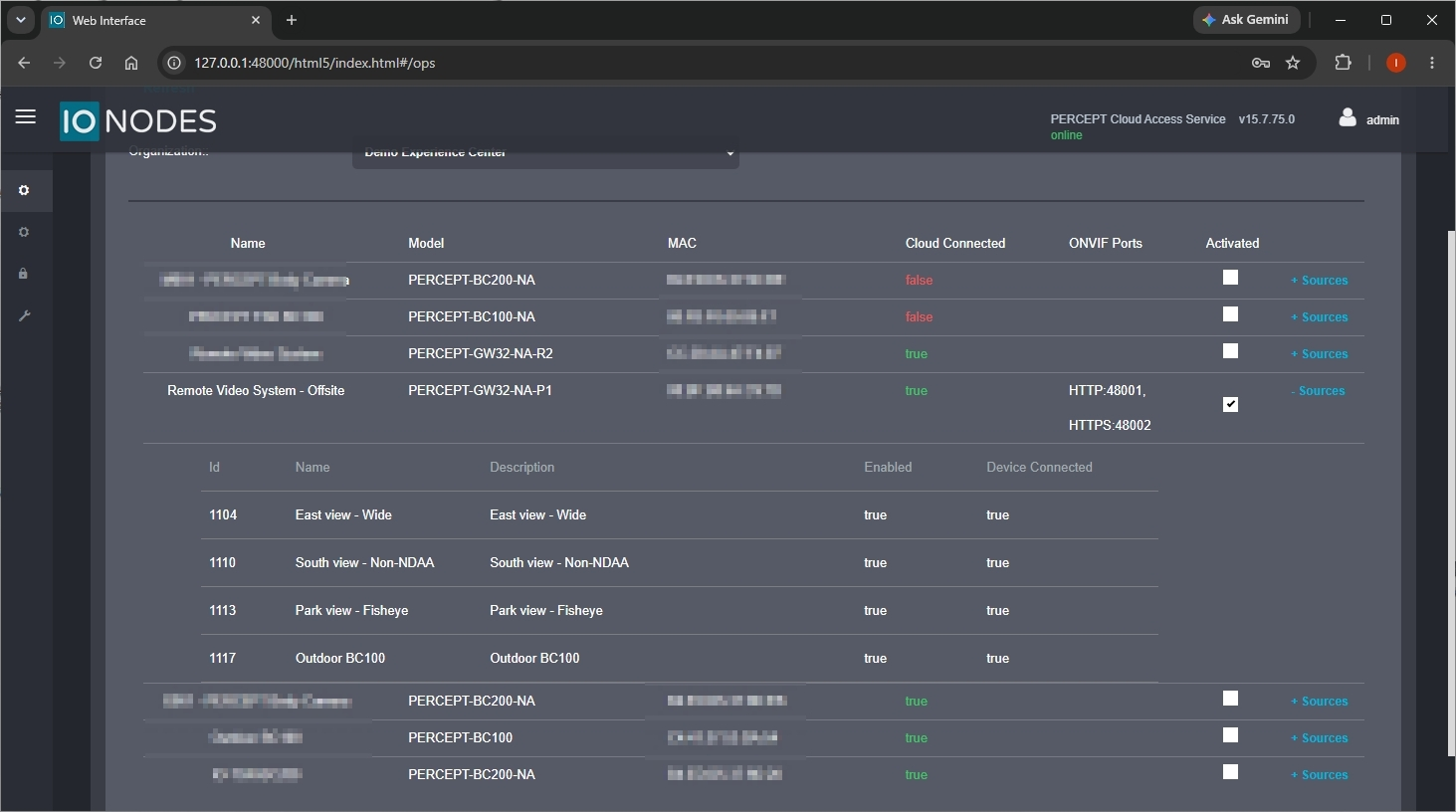
Add cameras to the VMS
- Identify the port assigned by PCAS to each enabled camera.
- Add each camera in the VMS using its standard ONVIF enrollment workflow and the PCAS host address and assigned port.
The VMS accesses a local ONVIF endpoint; the camera remains connected through PERCEPT Cloud rather than directly to the local network.
Troubleshooting
| Issue | Likely cause | Initial check |
|---|---|---|
| No cameras found in the VMS | ONVIF endpoint unavailable or blocked | Confirm that the PCAS service is running and the required LAN path is reachable. |
| No video from an enrolled device | Cloud connectivity or media path issue | Verify outbound internet access and confirm that the device is healthy in PERCEPT Cloud. |
| Login to the PCAS interface fails | Credential or account configuration issue | Check the local account, password state, and any recent policy changes. |
| Service is stopped or unstable | Host, configuration, or dependency problem | Restart the service and review host status and recent configuration changes. |