Genetec Security Center Plugin
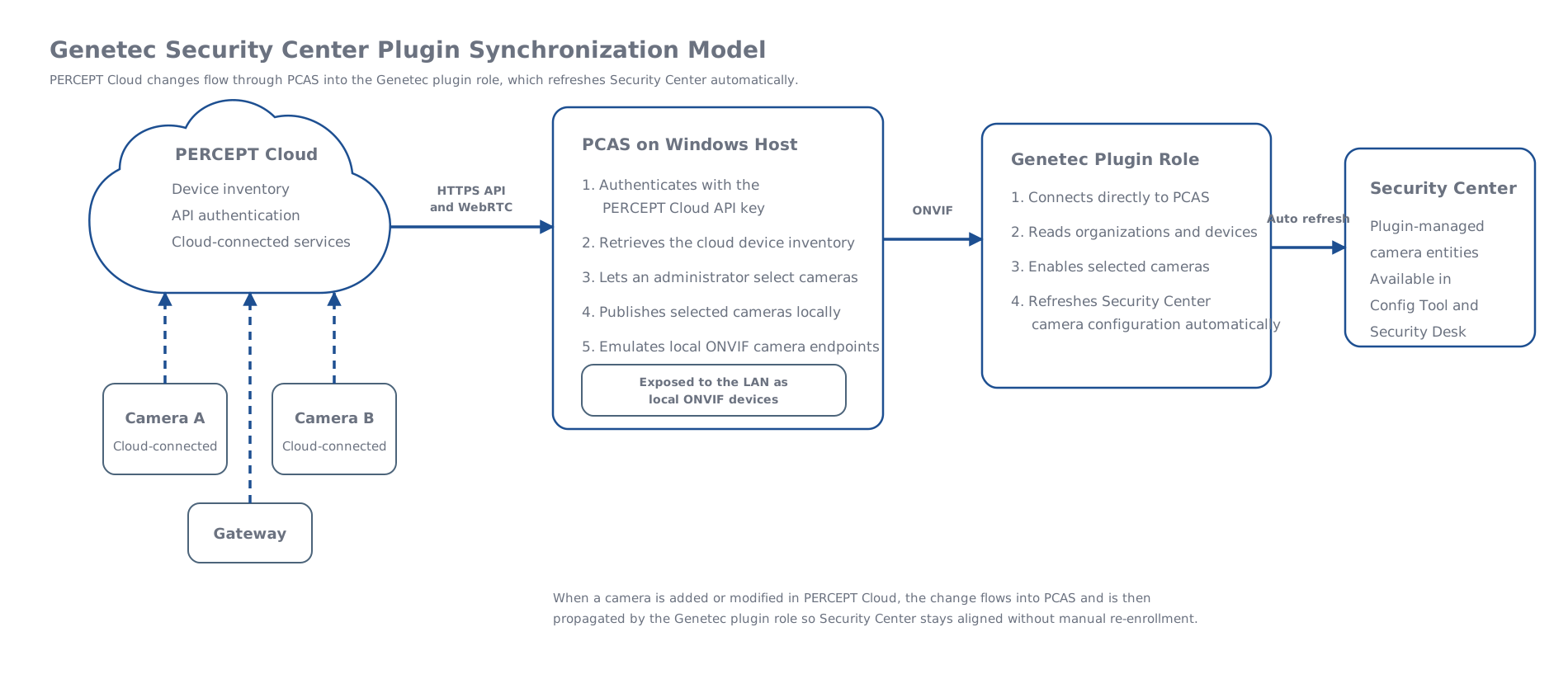
The plugin connects Security Center to PERCEPT Cloud Access Service (PCAS) and synchronizes camera entities automatically, without manual ONVIF enrollment. Changes to the PERCEPT Cloud inventory are reflected in Security Center when synchronized through PCAS.
For host and network requirements and PCAS installation, see the PCAS guide.
Install the plugin
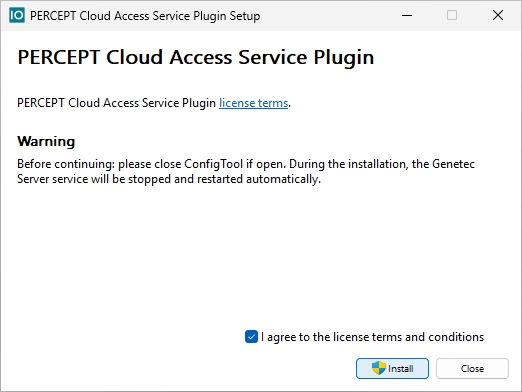
- Close Genetec Config Tool if it is open.
-
Run the Genetec plugin installer on the Security Center server. The Genetec Server service is stopped and restarted during installation.
-
Close the setup wizard when installation completes.
Create the plugin role
-
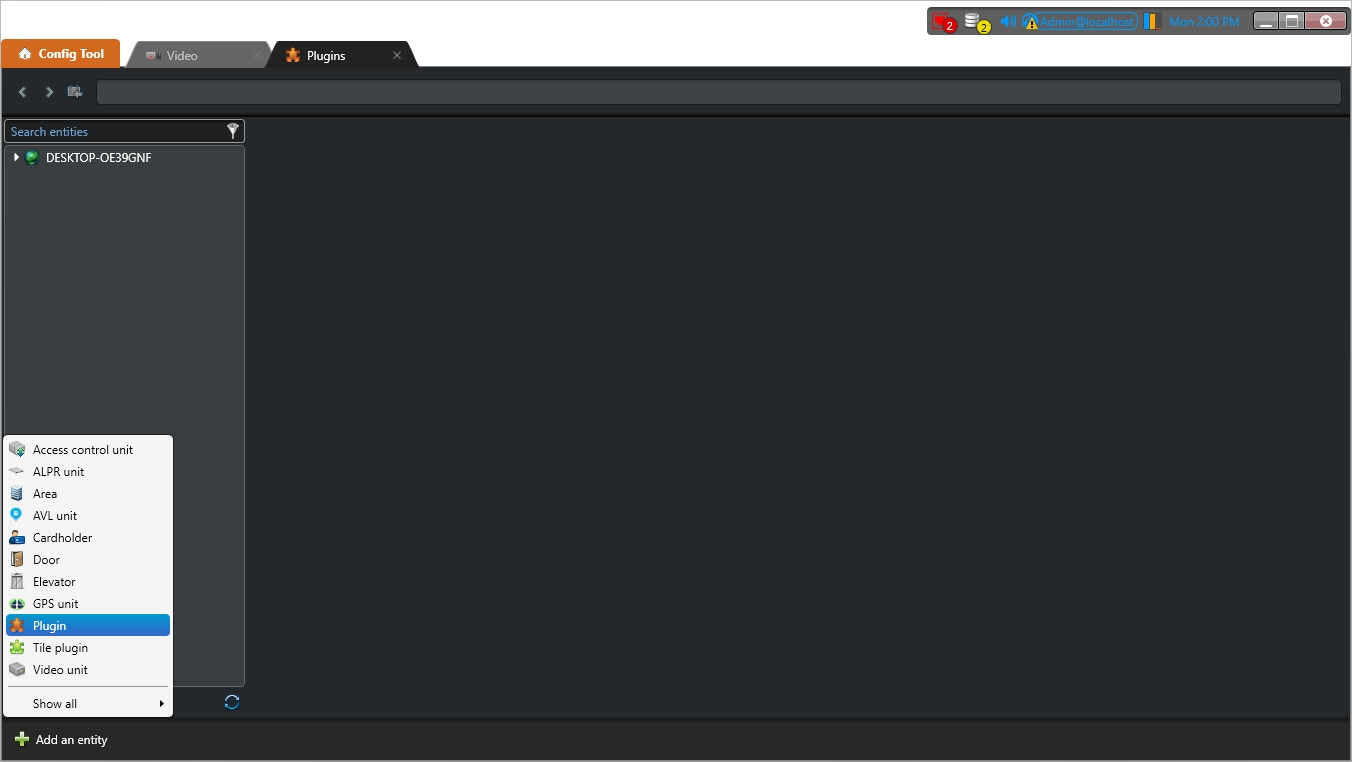
Open Config Tool and create a new plugin entity.
-
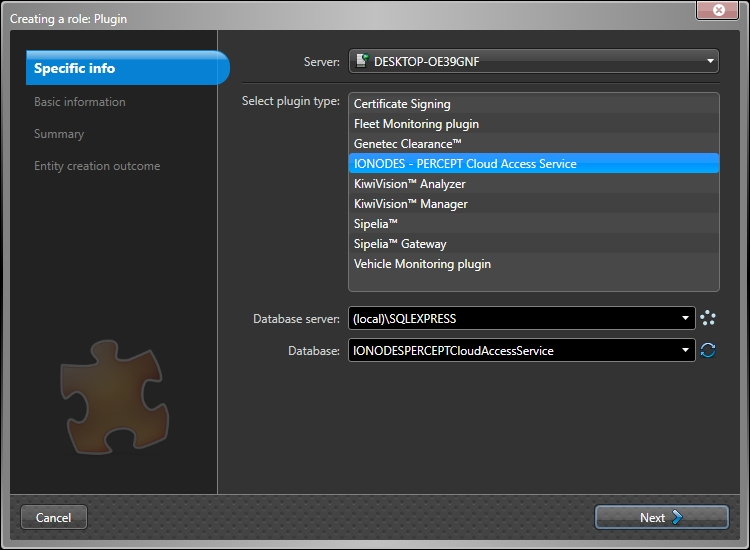
Select IONODES - PERCEPT Cloud Access Service as the plugin type, confirm the database server and database values, and complete role creation.
Connect to PCAS
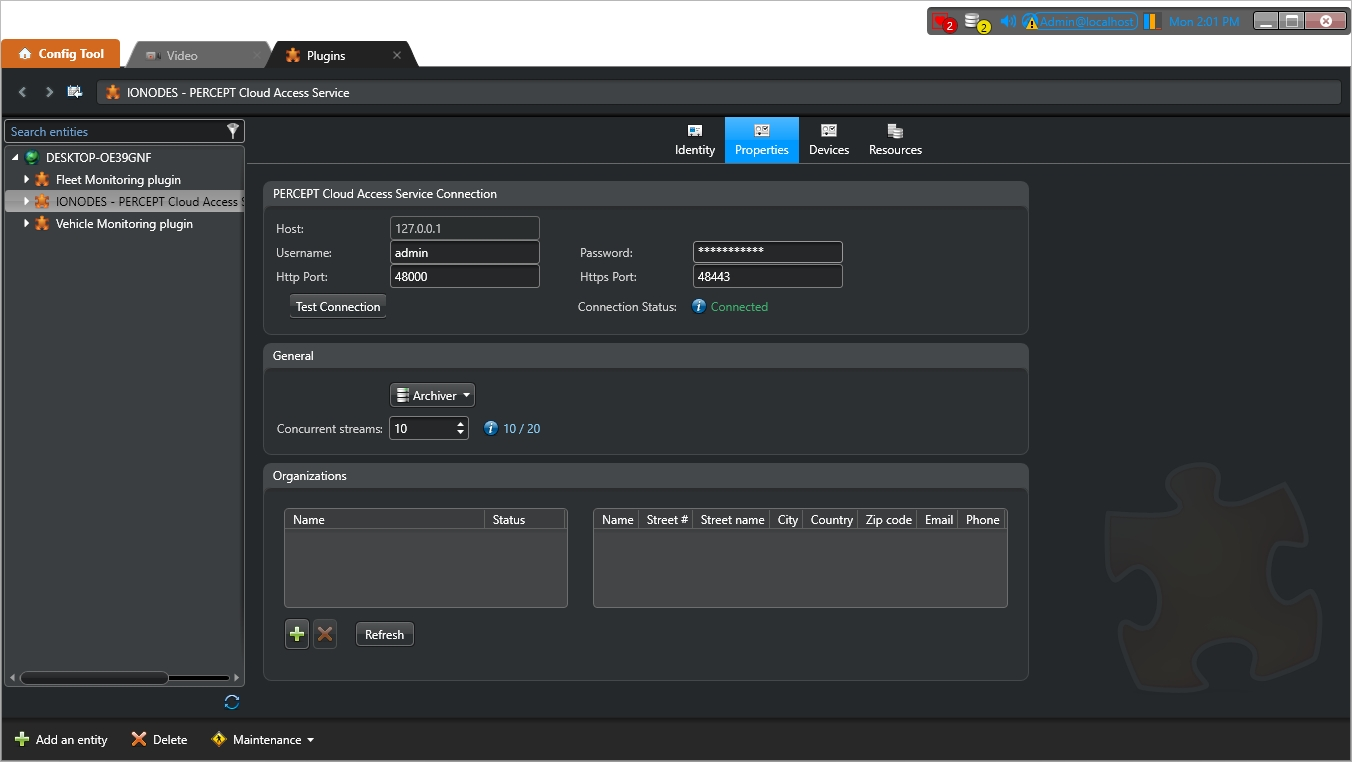
- Open the plugin role and select Properties.
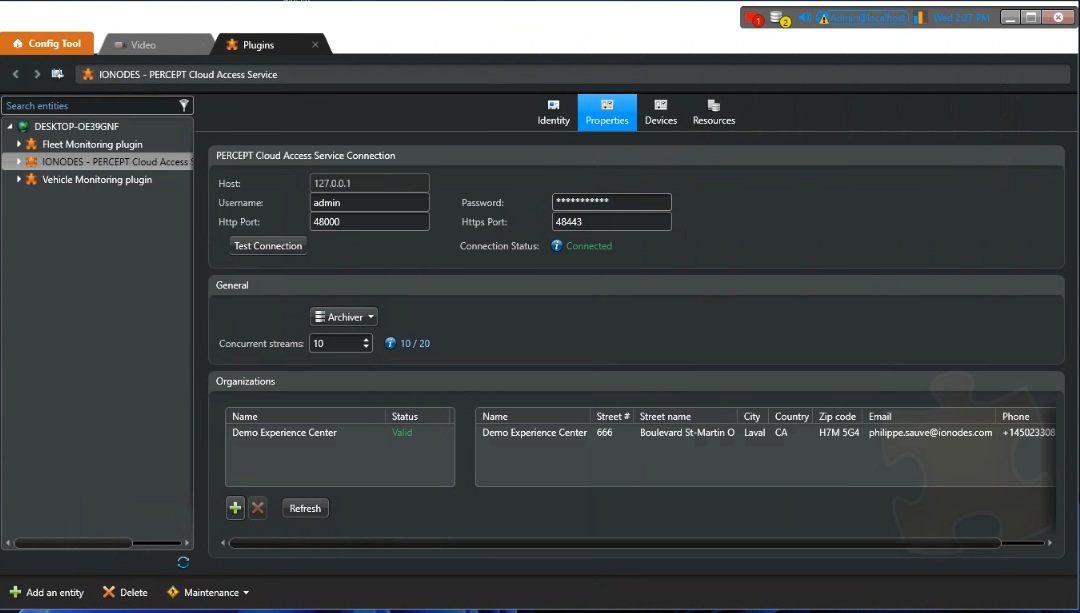
- Enter the PCAS Host, Username, Password, HTTP port, and HTTPS port.
-
Click Test Connection and confirm that the plugin reports a connected state.
Add an organization
See App Key Generation to create a key.
-
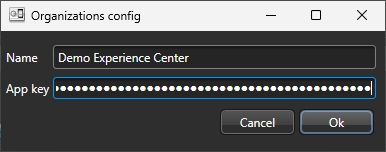
Add an organization entry and provide its PERCEPT Cloud application key.
-
Confirm that the organization is accepted and its status is valid.
Synchronize cameras
-
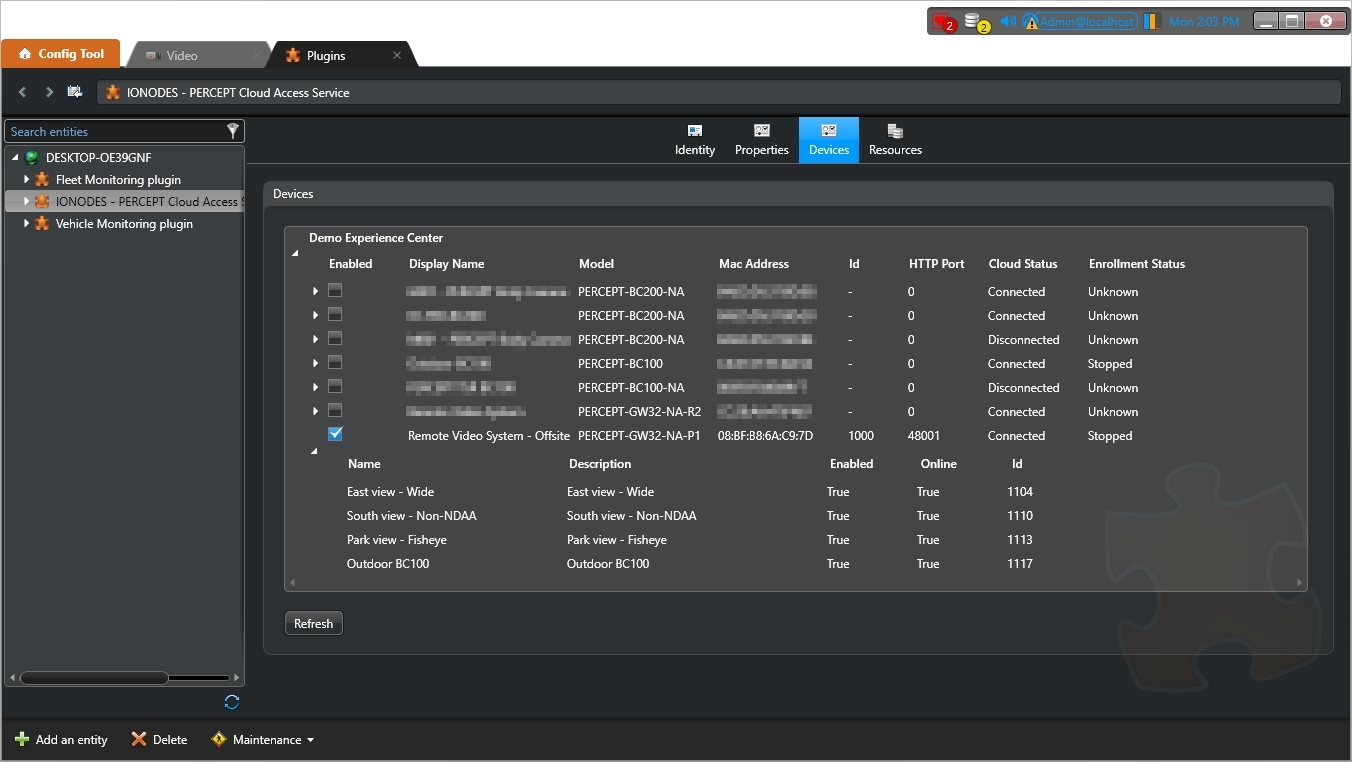
Open the Devices tab to review the available devices, their identifiers, assigned ports, cloud status, and enrollment status.
-
Enable the devices to expose in Security Center. The plugin creates or updates their camera entities.
-
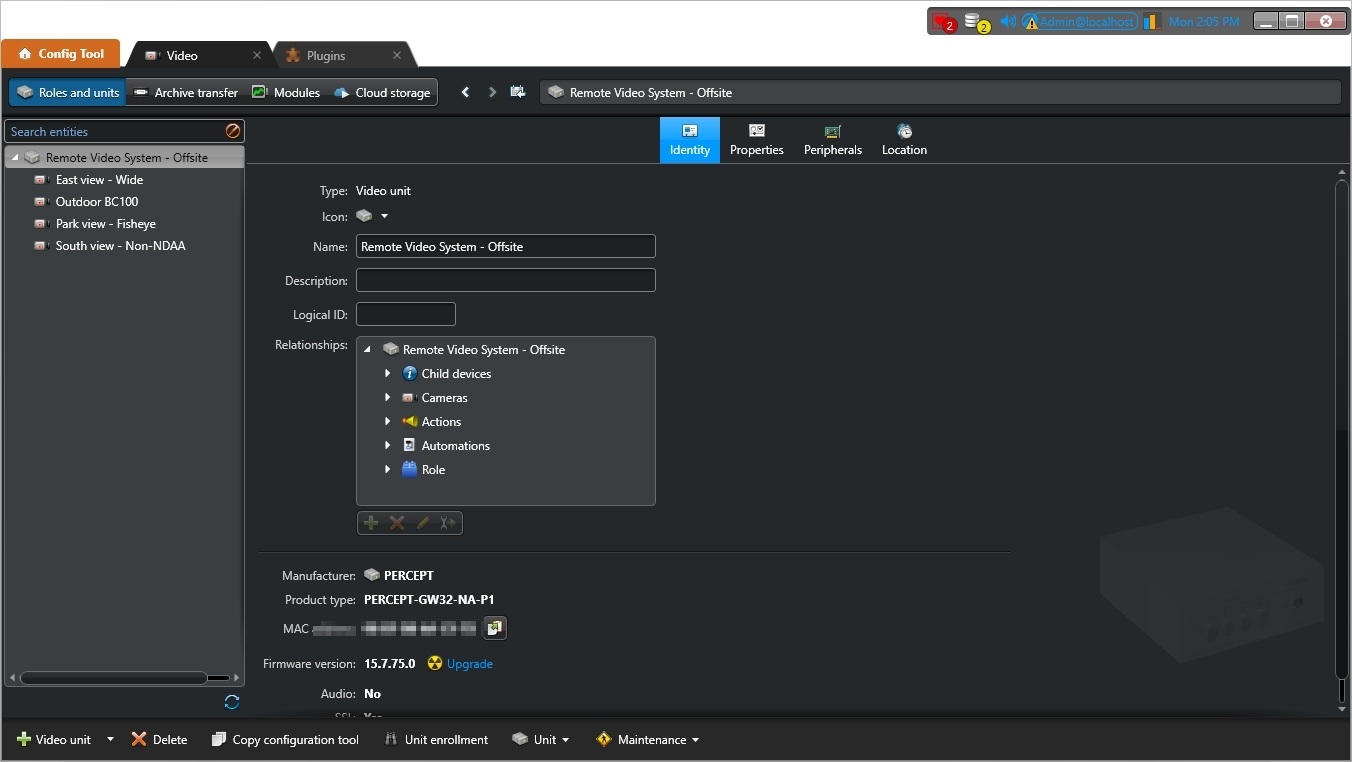
Confirm that the synchronized cameras appear in the Config Tool entity tree.
-
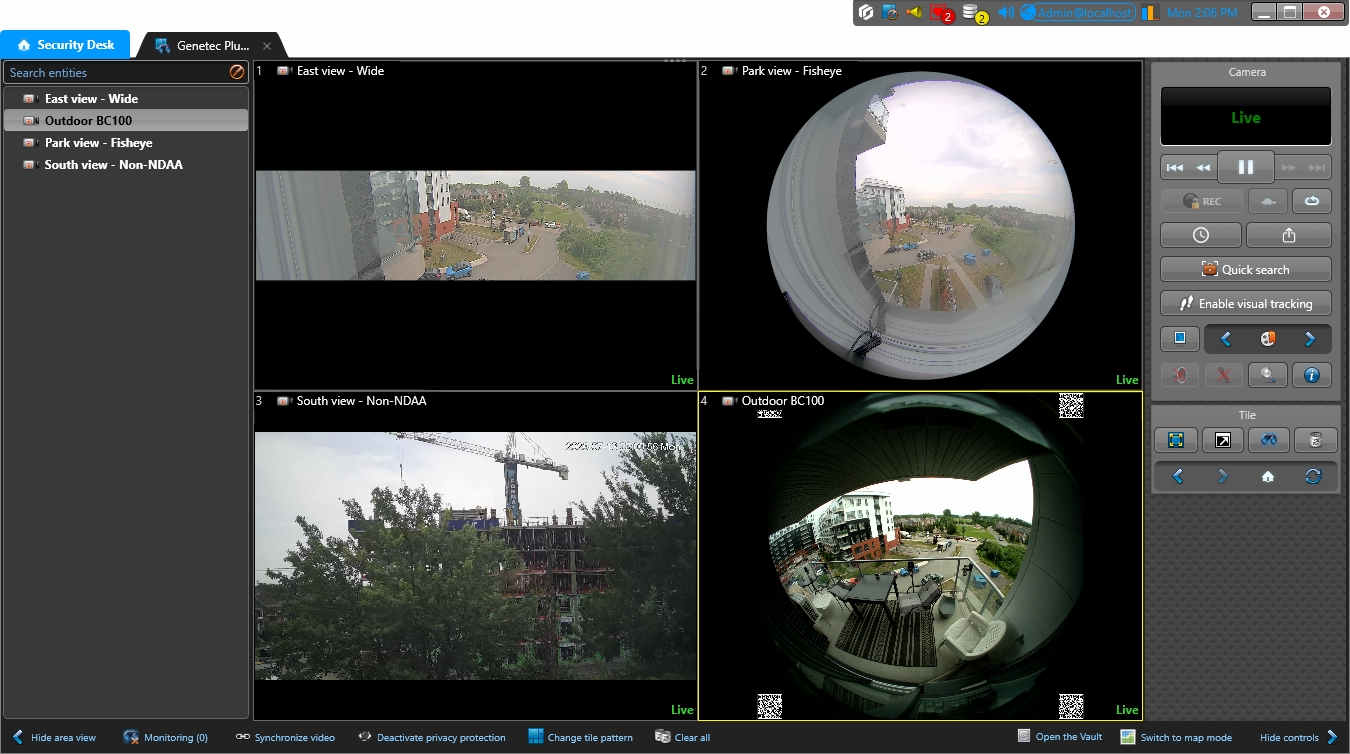
Open Security Desk and verify live viewing from the synchronized cameras.