IONConfigTool
IONConfigTool (ICT) discovers and configures IONODES devices on a local network during initial installation, maintenance, and troubleshooting.
This manual covers network discovery, IP address assignment, firmware updates, device identification, and configuration export and import. By default, IONConfigTool uses multicast discovery through the Bonjour protocol. If Bonjour traffic is filtered or unavailable, use Unicast discovery.
Note
Screenshots are provided as examples. The interface and available options may vary depending on the IONConfigTool version and device model or firmware. Refer to the applicable device manual for model-specific settings and status indicators.
Main interface
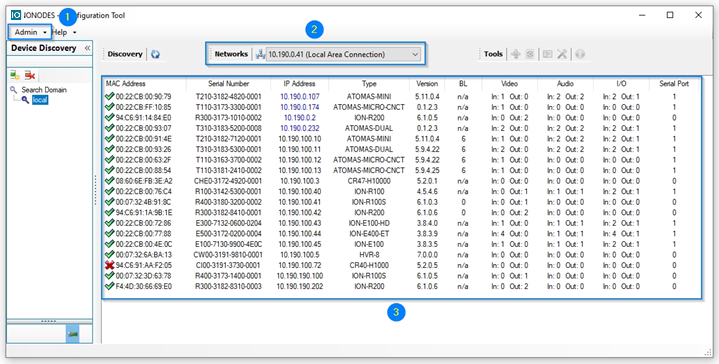
- Admin menu: Configures device credentials and unicast discovery.
- Network interface selection: Selects the network interface to scan, such as Ethernet or Wi-Fi.
- Device list: Shows the IONODES devices discovered on the selected network.
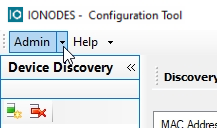
Admin menu
Click the arrow beside Admin to open the menu.
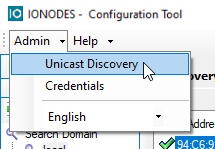
Discovery settings
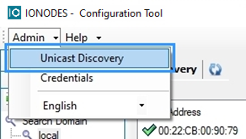
IONConfigTool uses Bonjour multicast discovery by default. Select Admin > Unicast Discovery to configure IP address ranges when multicast discovery is unavailable. See Unicast discovery for the complete setup.
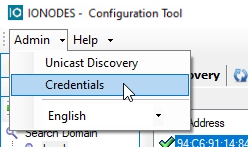
Device credentials
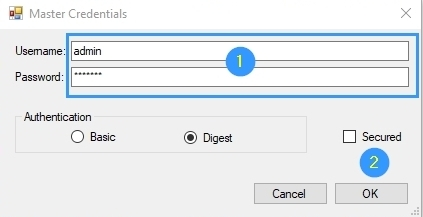
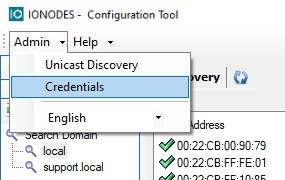
Select Admin > Credentials to open the Master Credentials window.
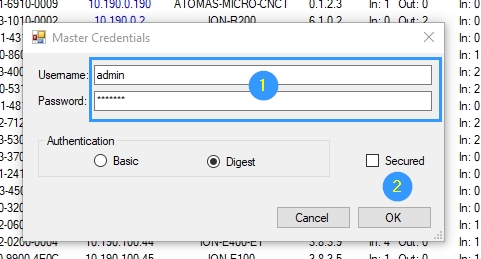
- Enter the username and password configured on the device.
- Click OK to save the credentials and return to IONConfigTool.
Note
Some older devices use admin / admin as their default credentials. Use the credentials configured on the device rather than assuming that these defaults apply to every model.
Bonjour discovery and device management
Device list
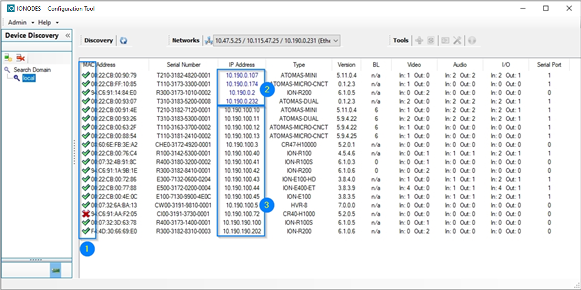
Select the network interface to scan. Click the IP Address column heading to sort the discovered devices in ascending or descending order.

The device list uses the following indicators:
- Device status: A green checkmark indicates that the device is online. A red X indicates that the device has gone offline since it was discovered.
- DHCP addresses: Blue IP addresses are assigned by DHCP.
- Static addresses: Black IP addresses are statically configured.
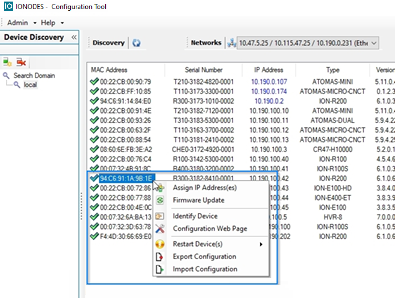
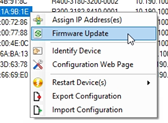
Click a device's MAC Address to open the device action menu.
Assign an IP address
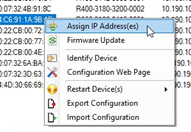
Select Assign IP Address(es) from the device action menu.
- Enter the static IP address, subnet mask, and gateway.
- Click Start to apply the settings.
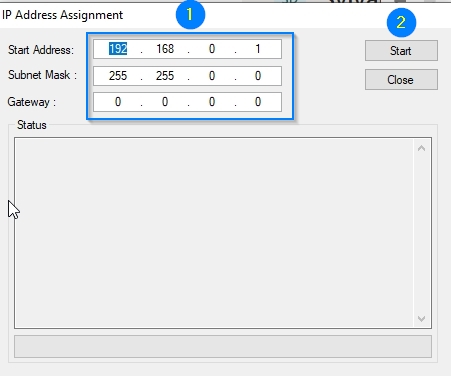
Close the window when the operation is complete.
Update firmware
Select Firmware Update from the device action menu.
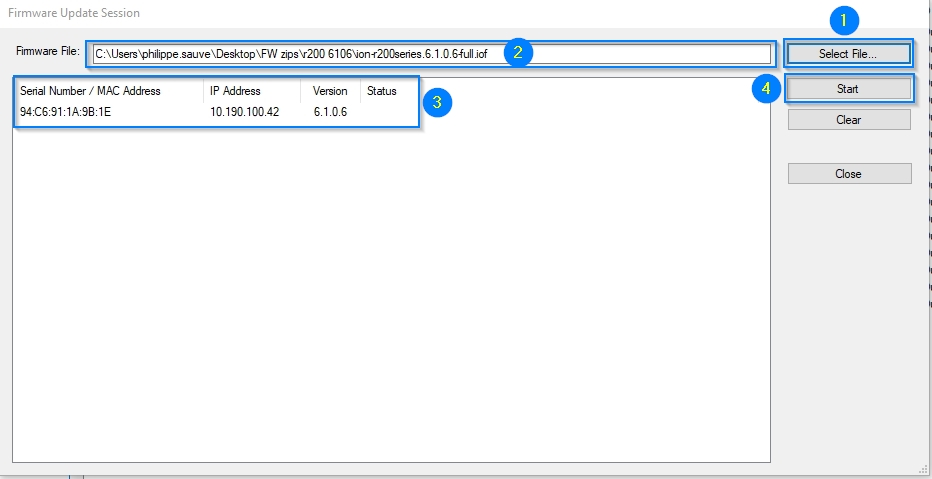
- Click Select File... to browse for the firmware file in Windows File Explorer.
- Select the firmware file and verify its path.
- Verify the device information and current firmware version.
- Click Start to install the firmware. Depending on the device, a restart may follow the update.
Identify a device
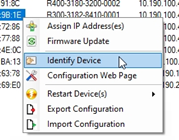
Select Identify Device from the device action menu.
On IONODES encoder and decoder products, this action flashes the status LED to help locate the physical device. Refer to the applicable device manual for the LED behavior.
Open the configuration web page
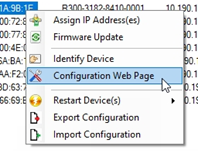
Select Configuration Web Page from the device action menu to open the device's configuration interface in the computer's default web browser.
Restart a device
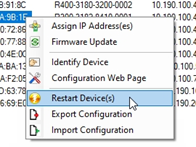
Select Restart Device(s) from the device action menu to send a restart request to the device.
Export configuration
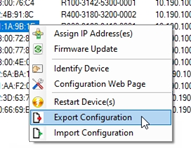
Select Export Configuration from the device action menu.
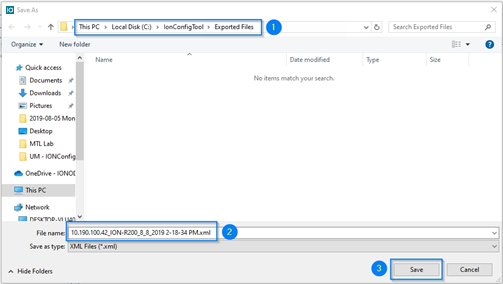
In the save dialog:
- Verify the destination folder. The dialog opens in the tool's export folder.
- Verify the filename. The suggested name includes the device IP address, device identifier, and date and time.
- Click Save to complete the export.
Import configuration
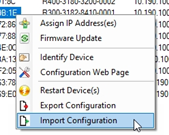
Select Import Configuration from the device action menu.
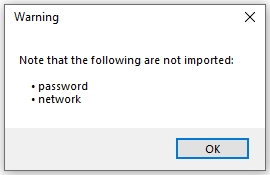
Note
Passwords and network settings are not imported. Configure these settings separately on the target device.
Review the warning and click OK.
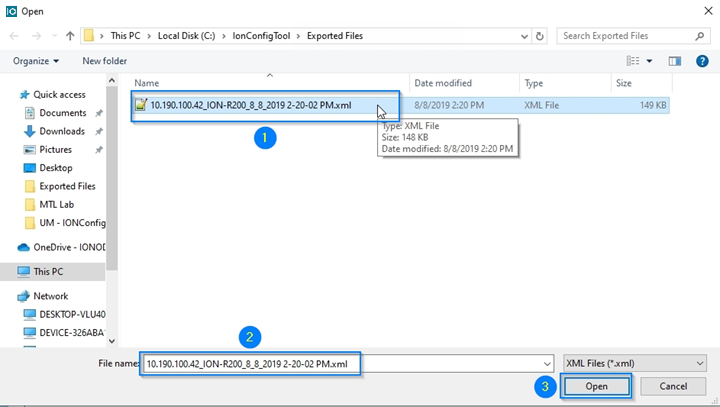
In the file selection dialog:
- Select the configuration file.
- Verify the filename, especially when the folder contains multiple files.
- Click Open.
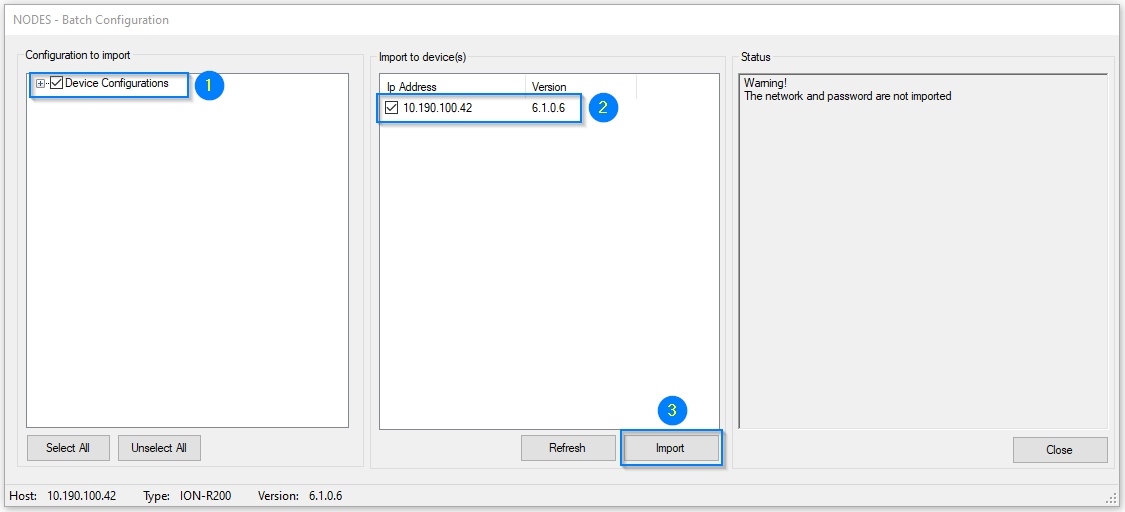
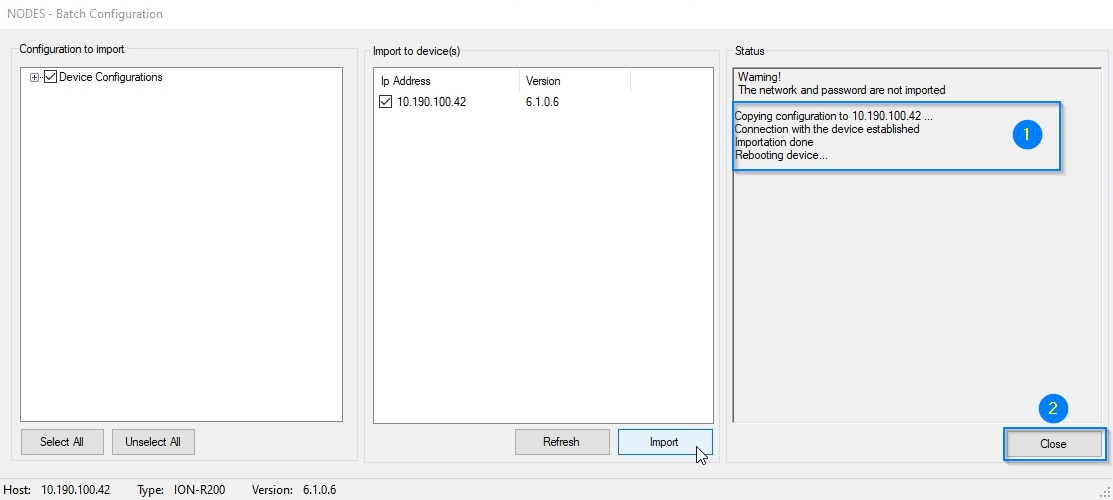
In the configuration import window:
- Select the configuration sections to import.
- Select the target device.
- Click Import.
After the import:
- Verify that no errors are reported.
- Click Close to return to IONConfigTool.
Unicast discovery
Some enterprise networks filter multicast traffic or disable Bonjour discovery. A device may receive an IP address through DHCP without appearing in the Bonjour discovery list.
Unicast discovery scans configured IP address ranges using device credentials. To discover a device when Bonjour is unavailable, continue with Configure unicast discovery.
Optional test: disable Bonjour
This example uses an ION-R200 with Bonjour discovery disabled to demonstrate unicast discovery. The interface may differ on other models.
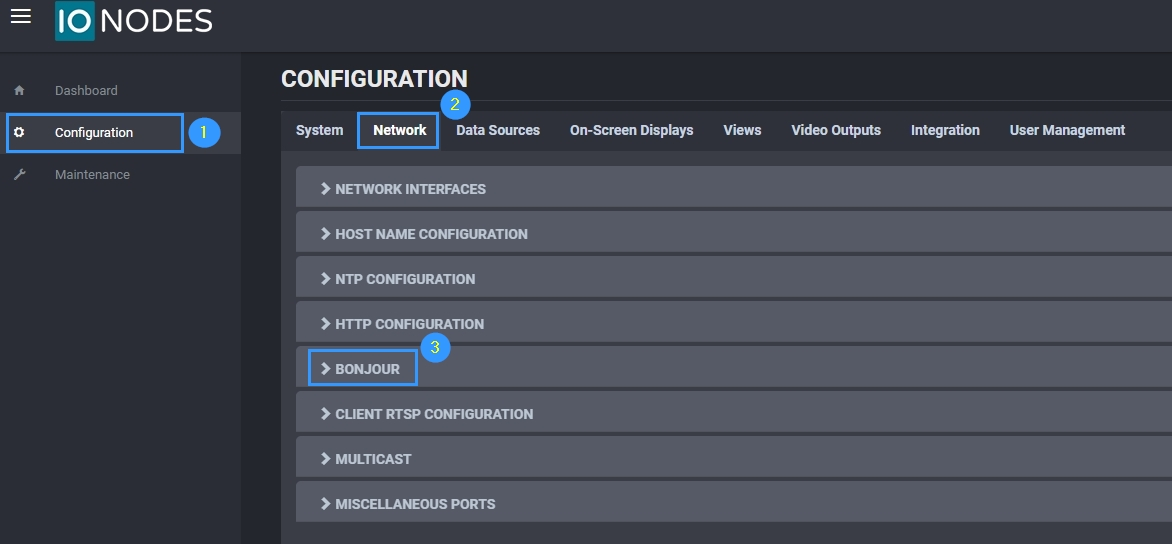
Sign in to the device web interface, then:
- Open Configuration.
- Select the Network tab.
-
Expand Bonjour.
-
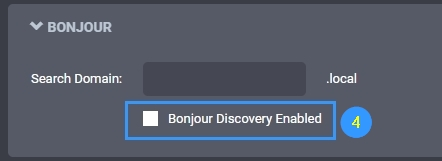
Clear Bonjour Discovery Enabled.
Click Save at the bottom of the page.
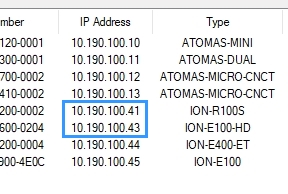
In this example, the ION-R200 at 10.190.100.42 no longer appears in the Bonjour discovery list.
Configure unicast discovery
Open Admin > Unicast Discovery.
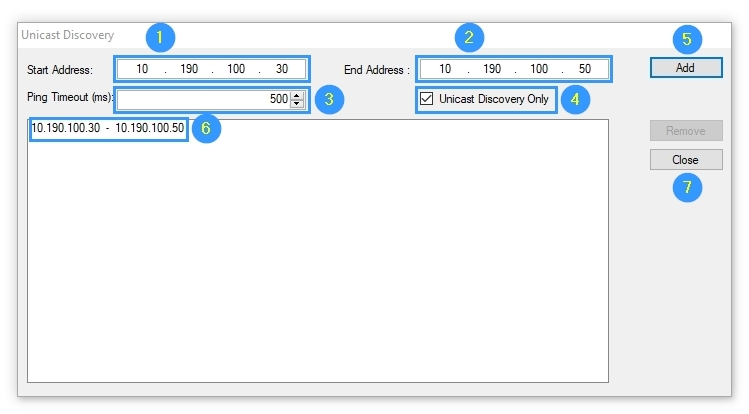
In the Unicast Discovery window:
- Enter the starting IP address of the range to scan.
- Enter the ending IP address of the range.
- Set Ping Timeout, the time IONConfigTool waits before attempting the next IP address.
- Select Unicast Discovery Only.
- Click Add to add the range to the discovery list. Repeat for additional ranges if required.
- Verify that the ranges appear in the list.
- Click Close.
Note
The addresses in the screenshots are examples. Confirm the appropriate scan ranges and network settings with the network administrator.
Configure credentials
IONConfigTool sends requests to the IP addresses in each configured range. The credentials must match those configured on the device being discovered.
Open Admin > Credentials.
- Enter the device username and password.
- Click OK to save the credentials.
Refresh the device list
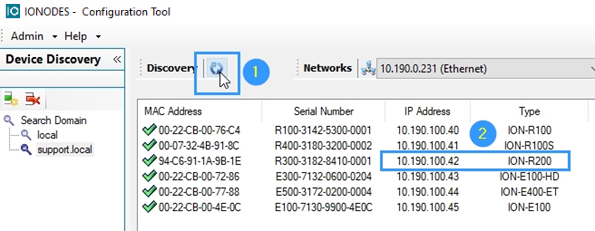
- Click Refresh to scan the configured IP address ranges using the saved credentials.
- Verify that the device appears in the list. Reachable devices with matching credentials are displayed.
Troubleshooting
| Symptoms | Possible cause | Resolution |
|---|---|---|
| IONConfigTool does not start | The application is being run from inside the downloaded ZIP archive | Extract the archive to an empty folder before running the executable. Do not run the application directly from inside the ZIP archive in Windows File Explorer. |
| Devices do not appear in the discovery list | The device is not powered or is still starting | Verify that the device is powered through PoE or a compatible power supply and wait until it is ready. A green status LED indicates readiness on the example devices; refer to the applicable device manual for the correct ready-state indication. |
| Devices do not appear in the discovery list | The device is not connected to the network | Check the Ethernet link indicator. If it is not lit, verify the cable and network switch connection. |
| Devices do not appear in the discovery list | Bonjour multicast traffic is blocked or unavailable | Verify with the network administrator that multicast traffic is allowed and that firewall settings allow Bonjour traffic on UDP port 5353. If Bonjour is filtered or unavailable, use Unicast discovery. |
| A discovered device remains offline | The computer's selected network interface is on a different subnet | Verify that the selected network interface is on the same subnet as the discovered device. |